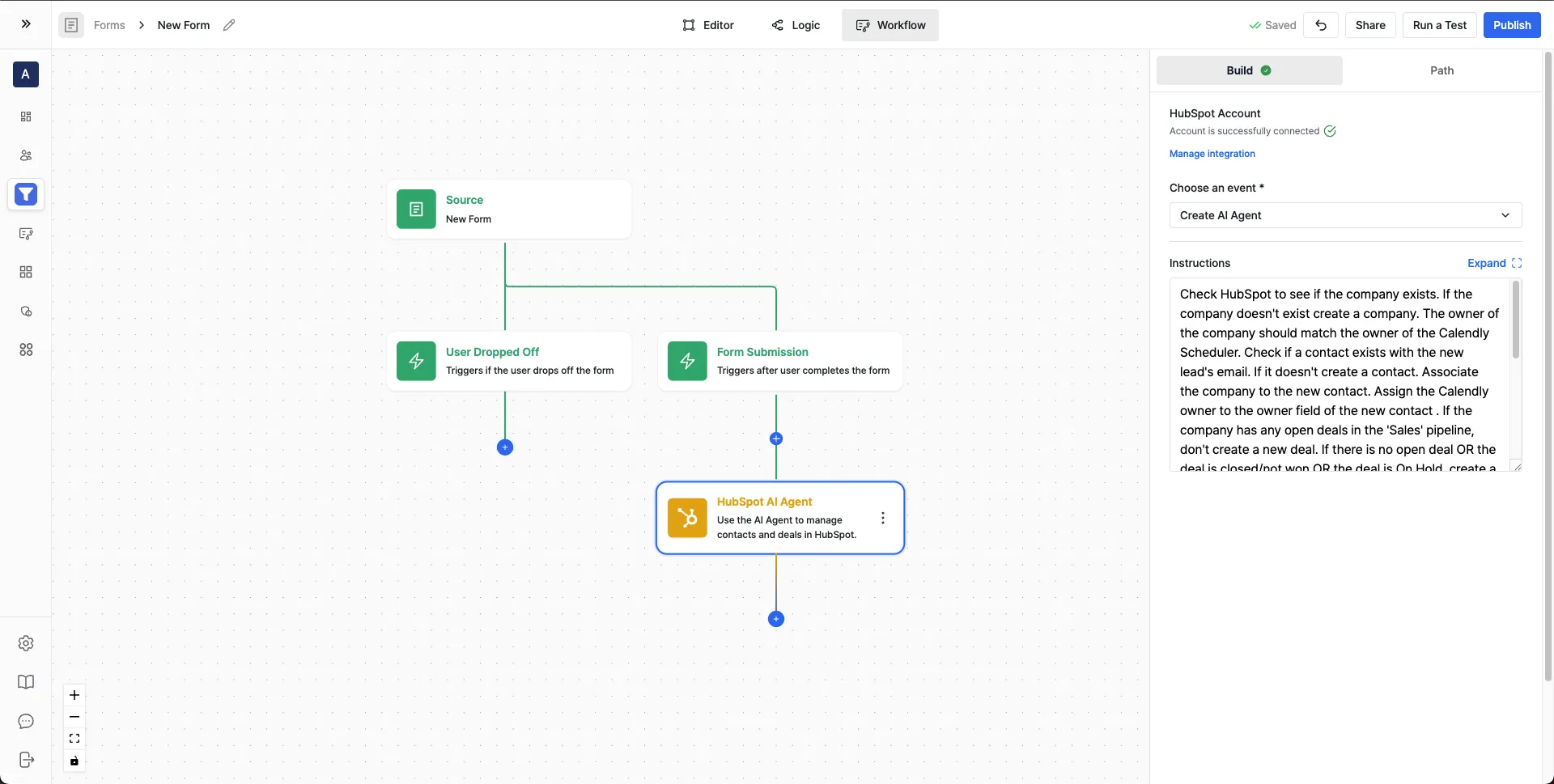
Configure workflow
Set up a workflow in Surface to send form submissions to your HubSpot form.
Connect HubSpot to Surface
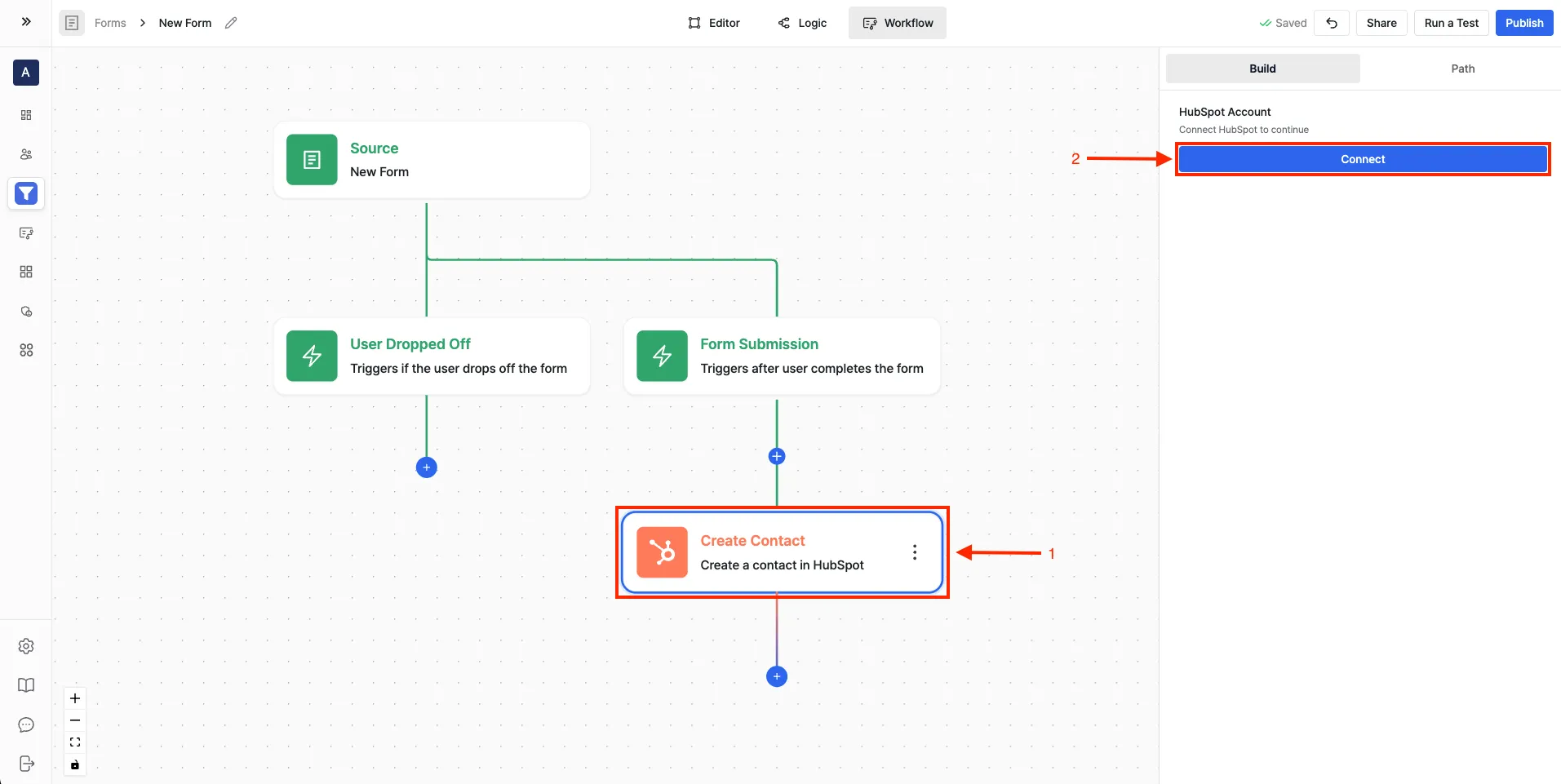
- Navigate to the Workflow Builder in Surface
- Add any HubSpot action and click Connect
- Select your HubSpot organization when prompted
- Accept Surface Labs invite
- Click Connect App to complete setup
Create a workflow
- Go to Workflow Builder from the sidebar
- Click Create workflow
- Choose trigger type:
- Finished - For complete submissions
- Dropped Off - For partial submissions
Add HubSpot action
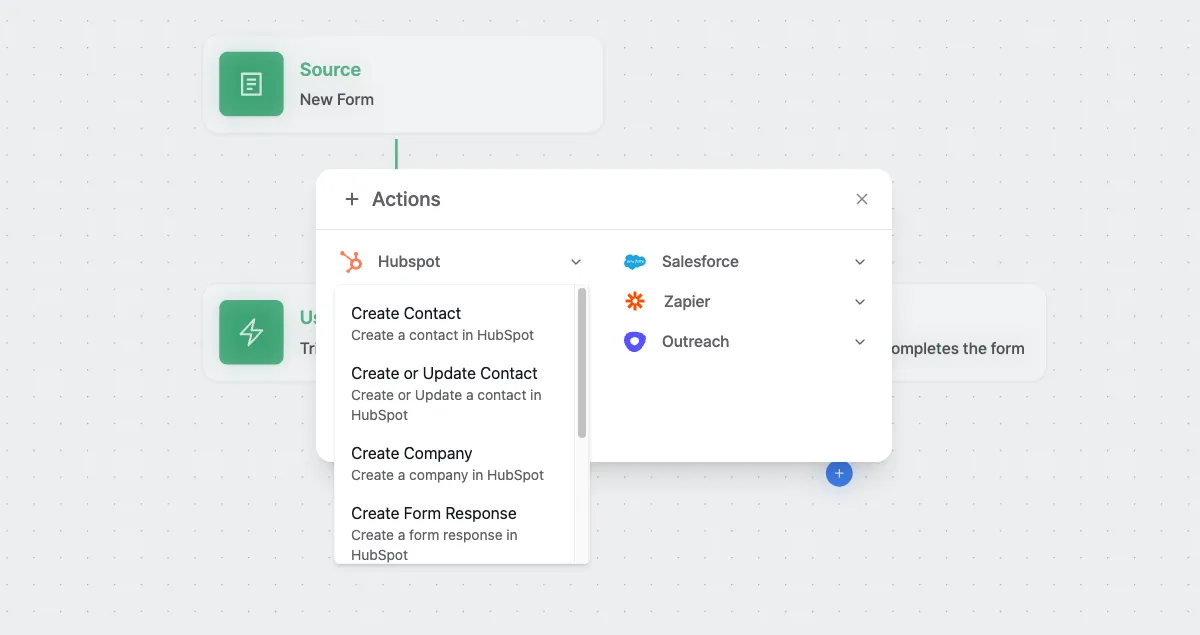
- Click + Actions
- Select HubSpot from the actions list
- Choose Create Form Response action
Configure form response action
Select your HubSpot form
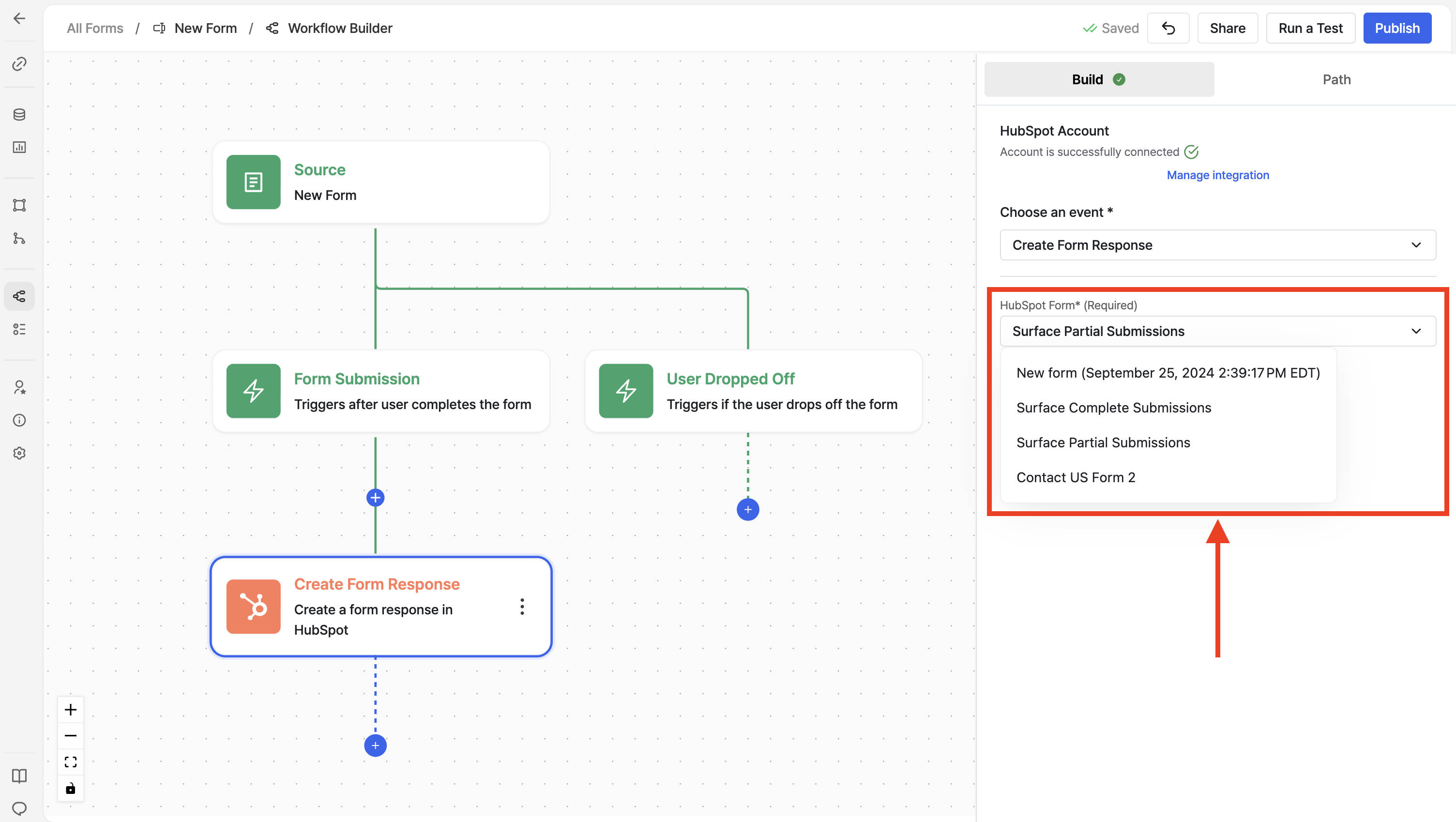
- Click on the HubSpot Form dropdown
- Select the form you want to use for this workflow
Get internal names from HubSpot form fields
You need the internal names (also called API names) of your HubSpot form fields. These are what you enter as the Value when mapping in Surface.
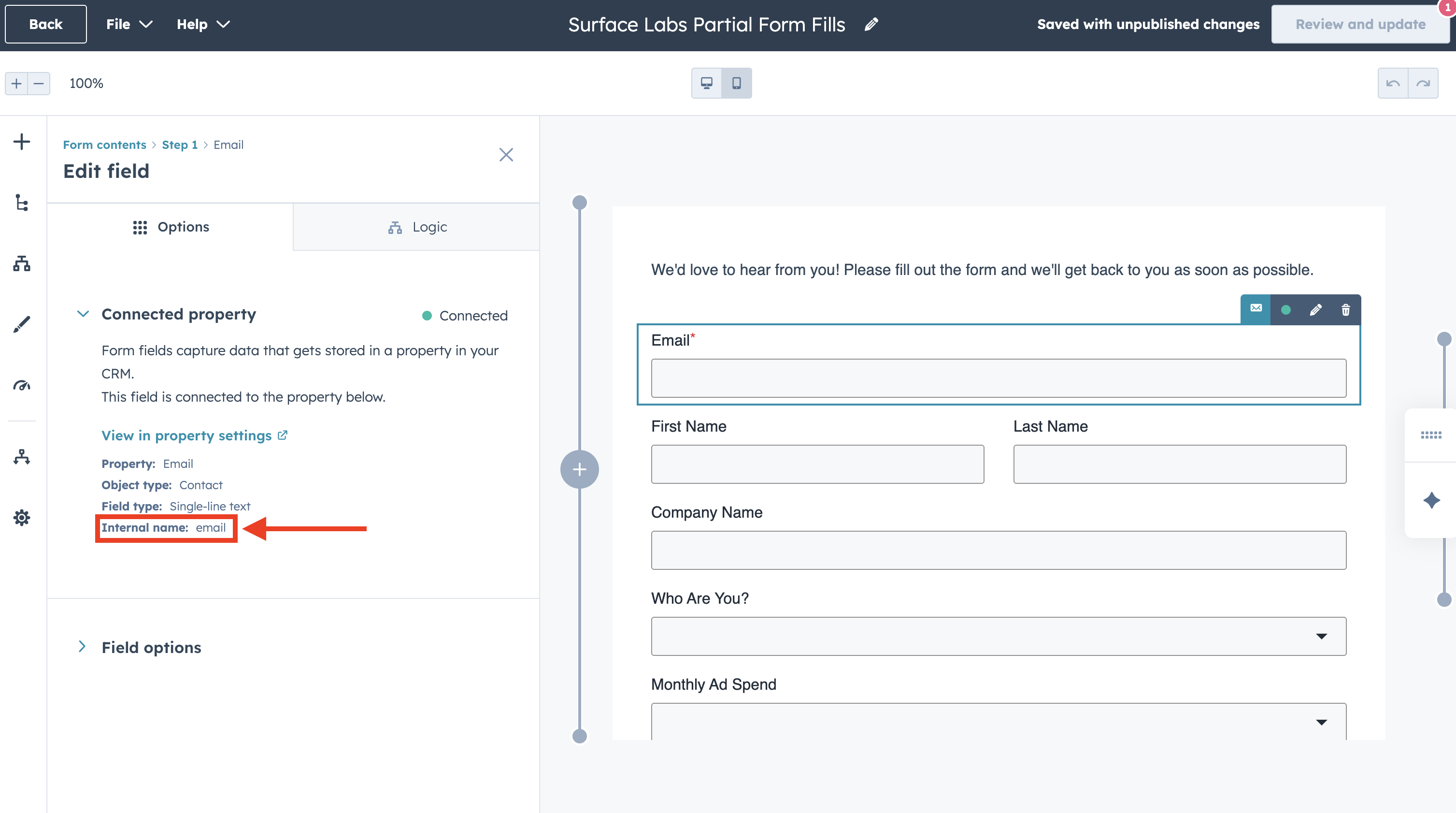
To find the internal name for each HubSpot form field:
- In your HubSpot form editor, select the field you want to map (e.g., Email or First Name)
- In the Edit field panel on the left, click on Connected property (it will show as "Connected" with a green indicator)
- Under the Connected property section, you'll see the Internal name (e.g.,
emailorfirstname)
Map Surface form fields to HubSpot form fields
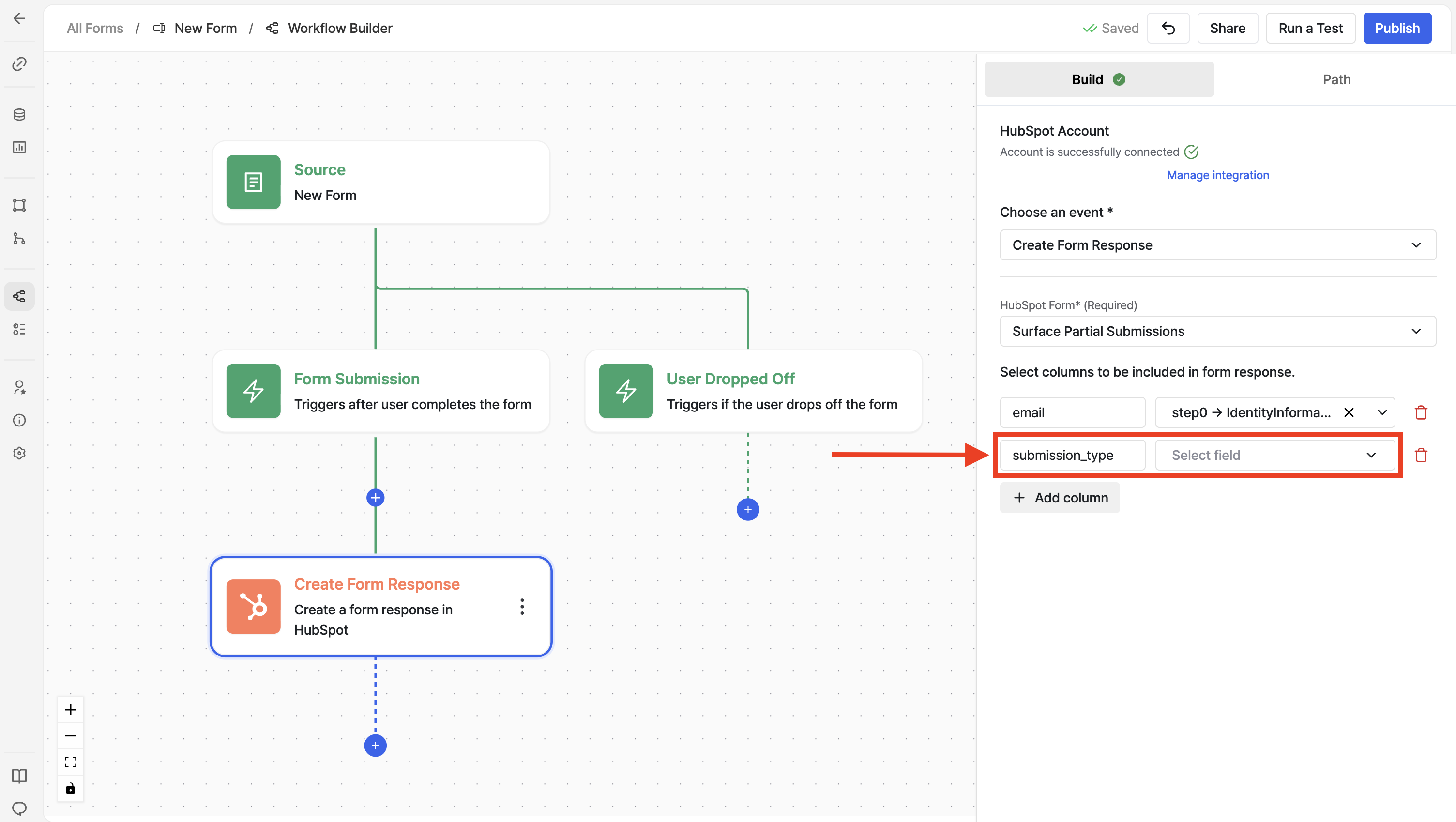
Map your Surface Form fields:
- Click on Add column button to add a new field mapping
- Key (Surface Field): Select the field from your Surface Form
- Example:
emailfrom Form Submission or Lead - Example:
firstNamefrom Form Submission or Lead
- Example:
- Value (HubSpot Internal Name): Enter the exact internal name you found in HubSpot
- Example:
email(from the Email field's Connected property) - Example:
firstname(from the First Name field's Connected property)
- Example:
- HubSpot Field: Select the corresponding HubSpot form field from the dropdown
- Example: Email
- Example: First Name
Mapping Examples:
| Surface Field (Key) | HubSpot Internal Name (Value) | HubSpot Field |
|---|---|---|
email (from Form Submission) | email | |
firstName (from Form Submission) | firstname | First Name |
Configure additional HubSpot actions (optional)
You can add multiple HubSpot actions to your workflow:
- Create Contact - Create a new contact in HubSpot
- Create or Update Contact - Create or update a contact
- Create Company - Create a company record
- Create Deal - Create a new deal
- HubSpot AI Agent - Use AI to manage contacts and deals automatically