
Configure tracking
Add HubSpot tracking to your Surface form to track visitor behavior and identify anonymous visitors.
Step 1: get the HubSpot tracking script
-
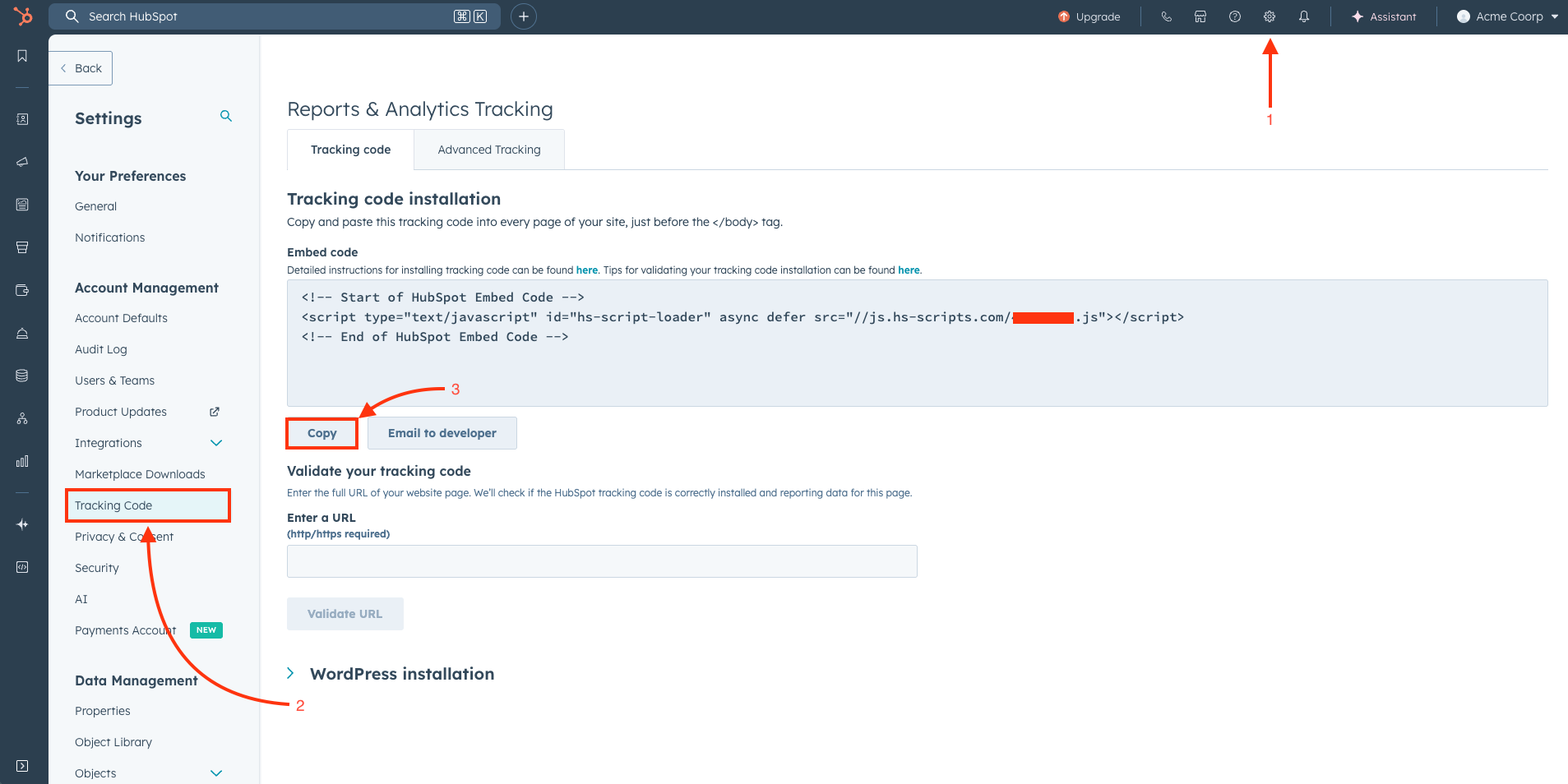
Navigate to HubSpot Settings
- In your HubSpot account, click the settings icon (⚙️) in the top navigation bar
-
Access Tracking Code
- In the left sidebar, look for Account Management
- Click on Tracking Code under the Account Management section
-
Copy the Tracking Code
- You'll see your HubSpot tracking code displayed in a text box
- Copy the entire tracking script code
- The code typically looks like:
<!-- Start of HubSpot Embed Code -->
<script type="text/javascript" id="hs-script-loader" async defer src="//js.hs-scripts.com/XXXXXXX.js"></script>
<!-- End of HubSpot Embed Code -->
Step 2: enable and add HubSpot tracking script in Surface form
-
Open Form Settings
- Go to your Surface form dashboard
- Navigate to the form you want to add HubSpot tracking to
- Click on Settings
-
Toggle on Cookie Tracking
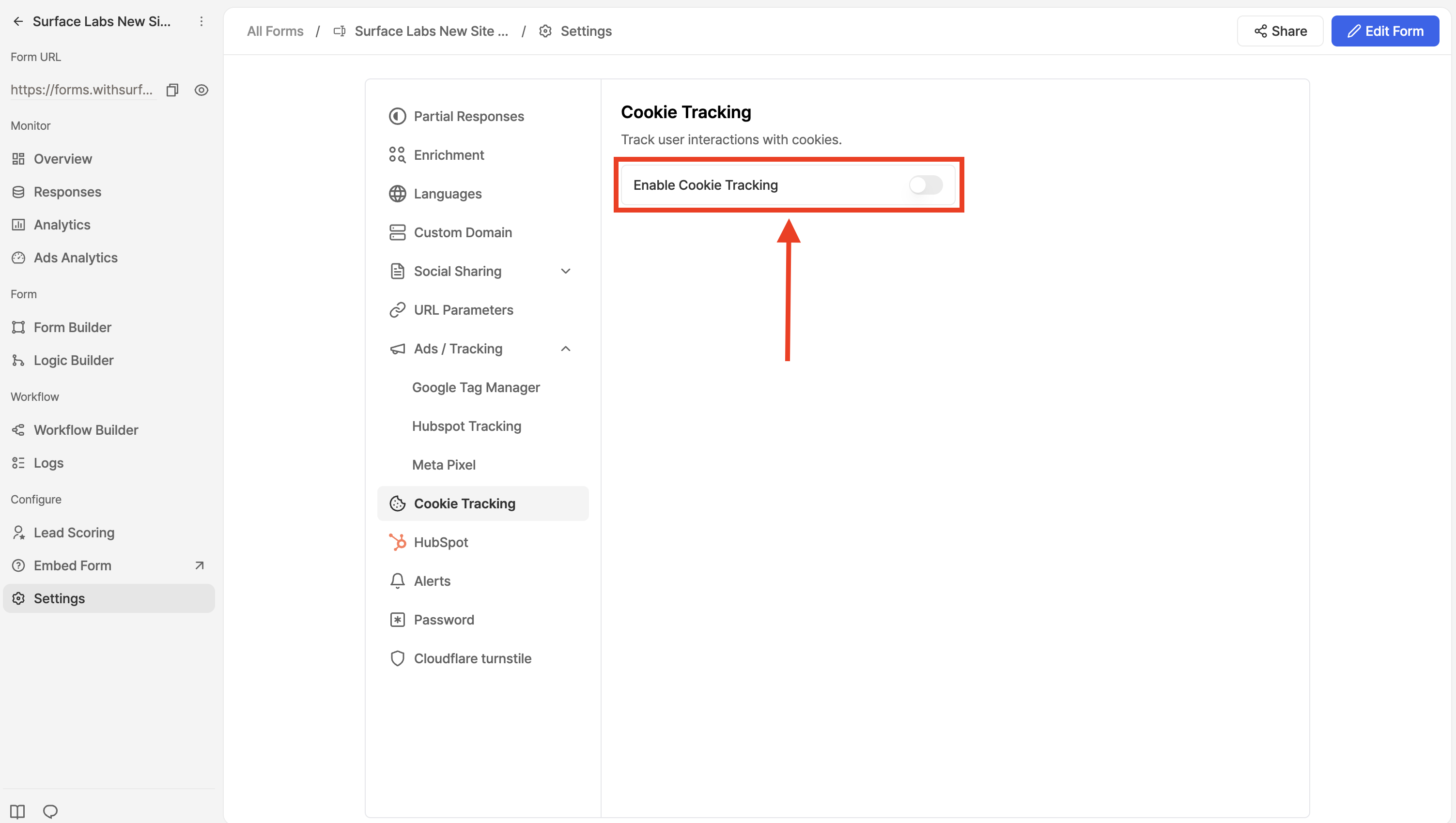
- In the form settings, look for Cookie Tracking section
- Toggle on Enable Cookie Tracking to track UTMs, first landing page, and lead sources
-
Find HubSpot Tracking Option
- In the form settings, look for Ads / Tracking section
- Click on HubSpot Tracking
-
Enable and Configure Tracking
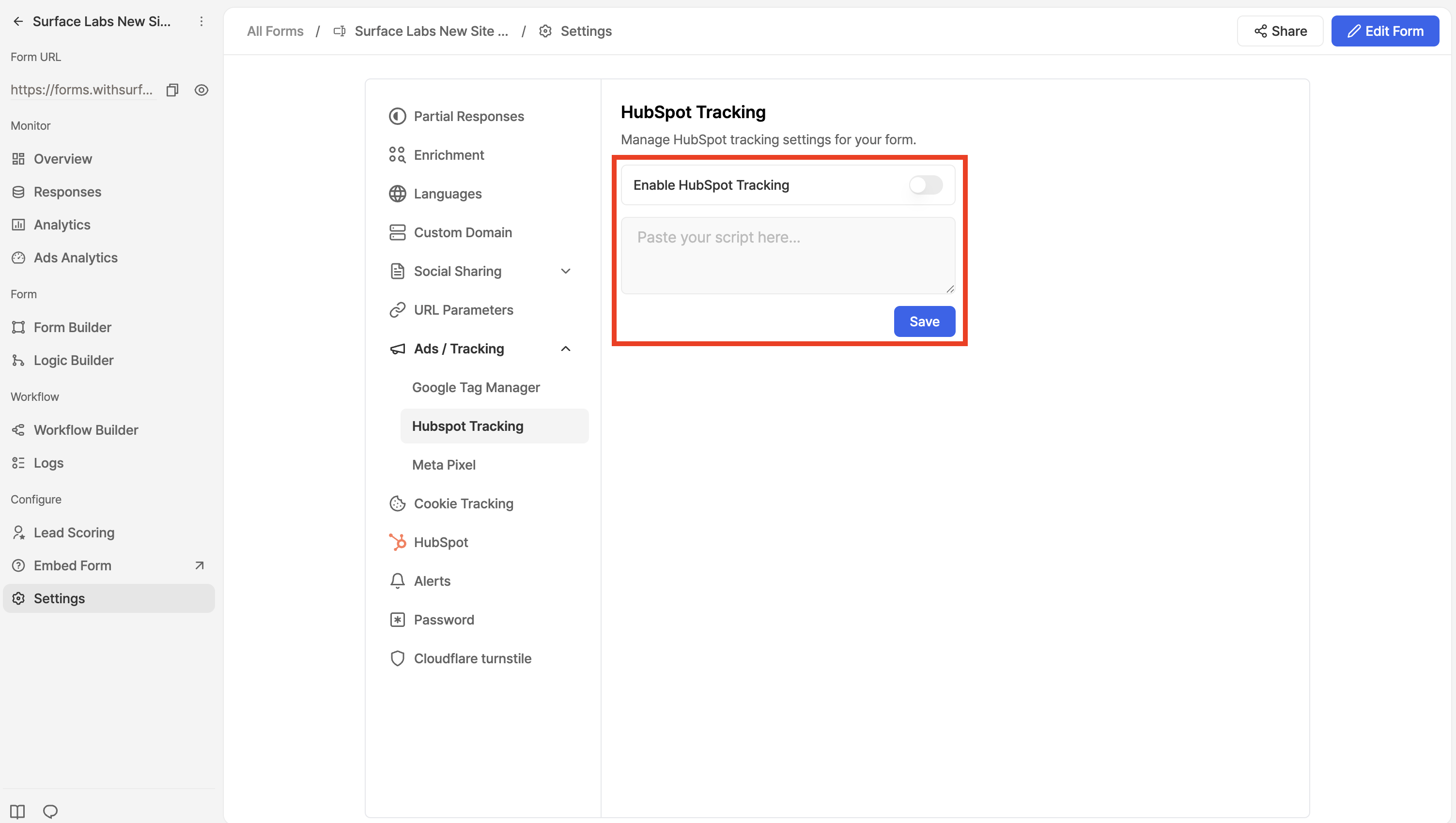
- Toggle the Enable HubSpot tracking switch to turn it on
- Paste the HubSpot tracking script you copied in Step 1 into the script field below
- Click Save to apply the changes