
Form translations
Surface translates the texts you wrote: questions, options, buttons, field hints, marketing copy and thank-you screens. Validation messages and the other copy Surface adds already follow the form language. Supported languages: English, Portuguese, Spanish, French, Chinese, Arabic, Japanese and Korean.
Step 1: turn on translations
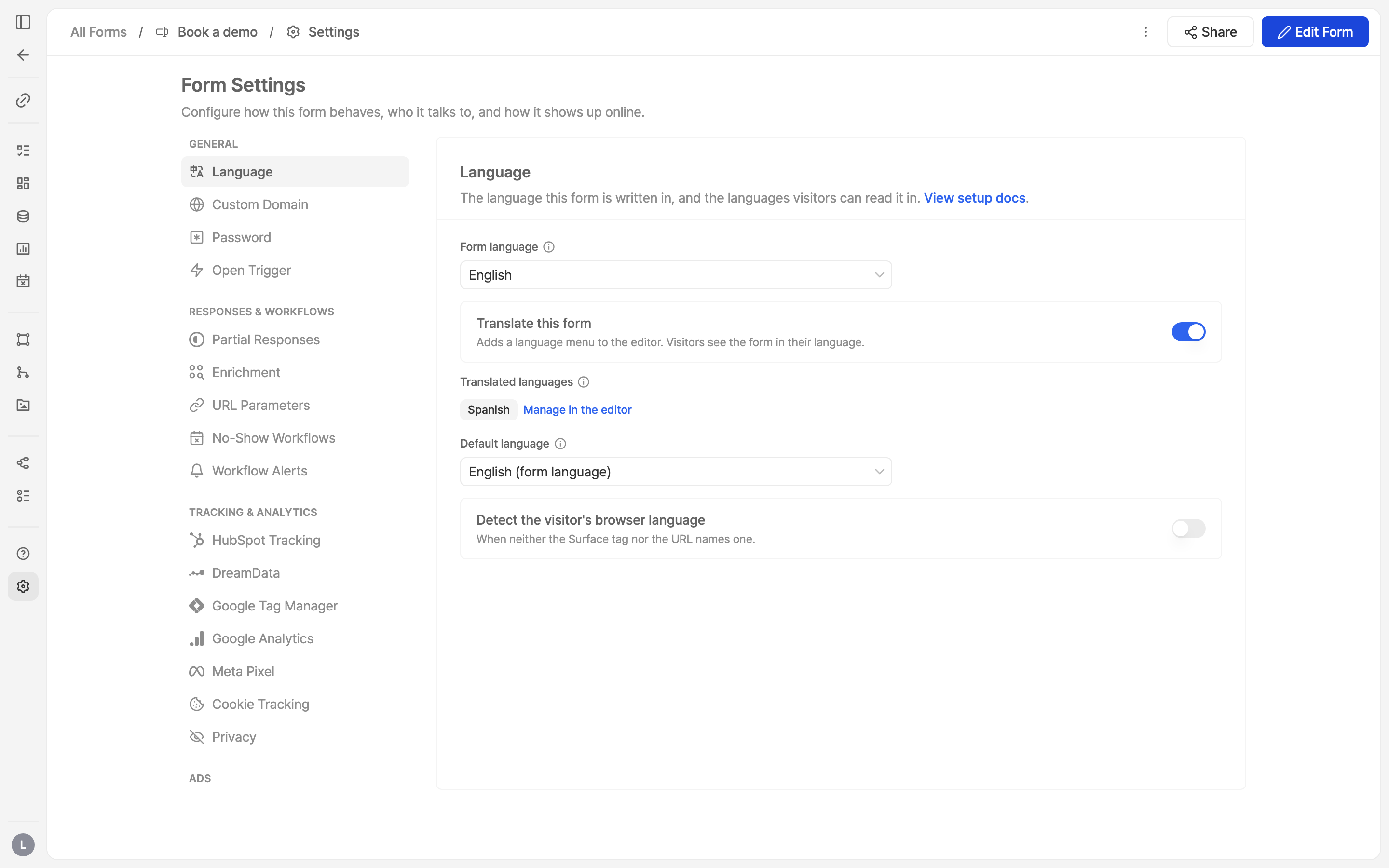
Open Form Settings › Language.
- Form language is the language you wrote the form in.
- Switch on Translate this form. The editor gains a language menu, and the published form serves its translated languages.
Three settings appear once it is on:
- Translated languages: the languages this form is translated into. They are added and removed in the editor (next step).
- Default language: shown when nothing else picks a language for a visitor.
- Detect the visitor's browser language: use the browser's language when it is one of the translated ones.
Step 2: add a language
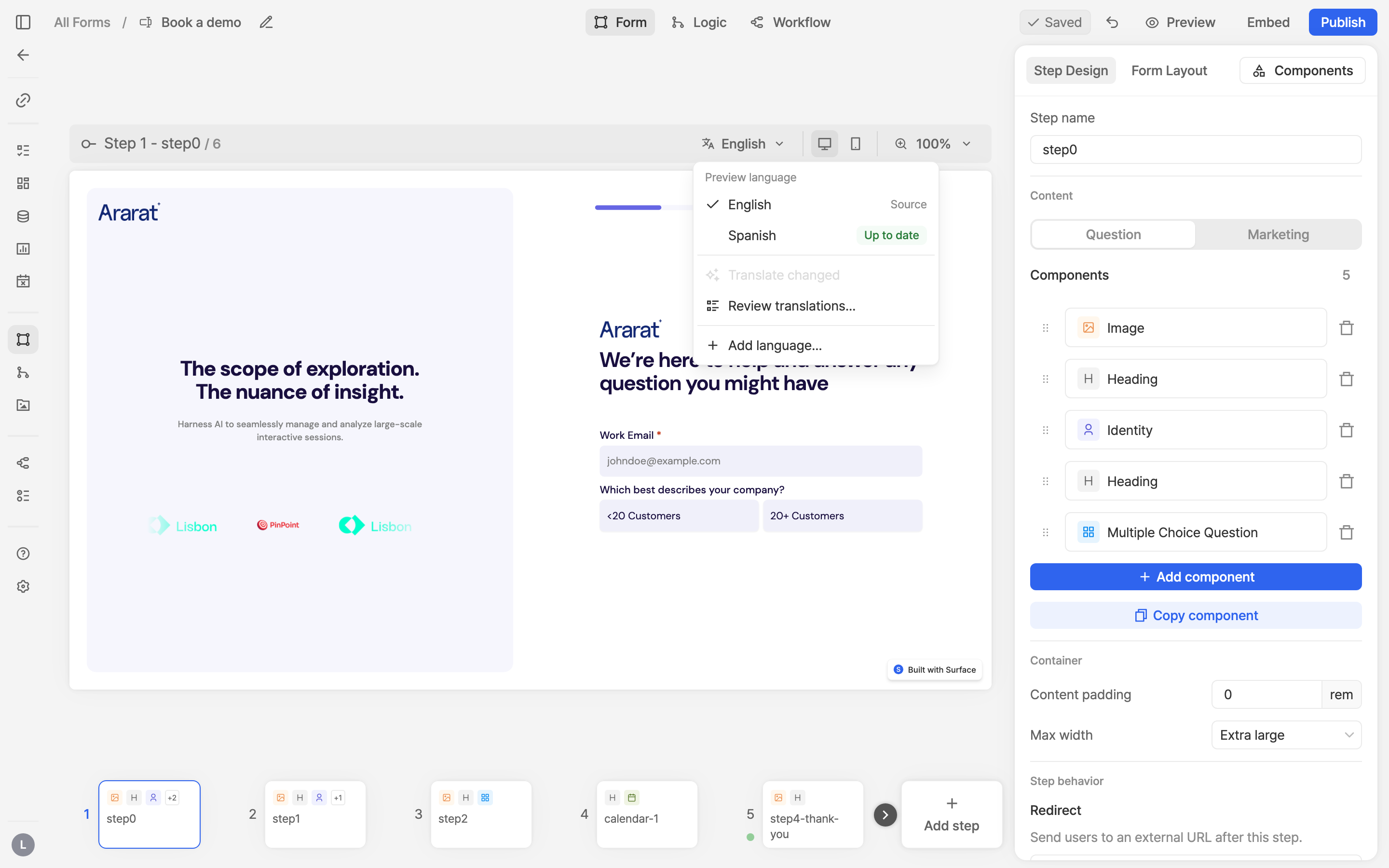
In the editor, the language menu sits above the preview. It lists the form language and every translated language with its status: Up to date, N to translate, Not translated or Failed.
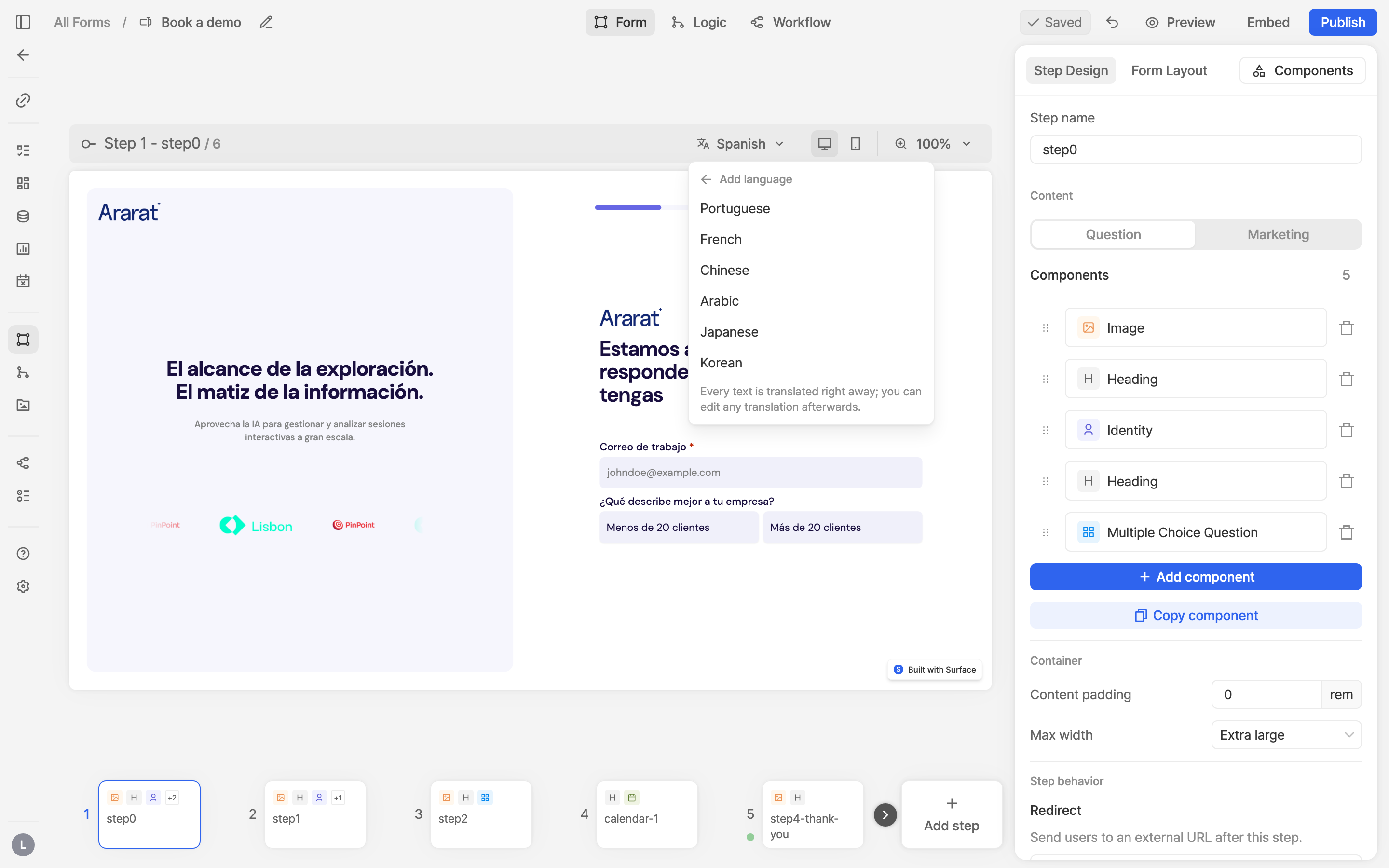
Choose Add language… and pick one. Every text is translated right away; a form can hold up to four translated languages.
Step 3: preview and edit a translation
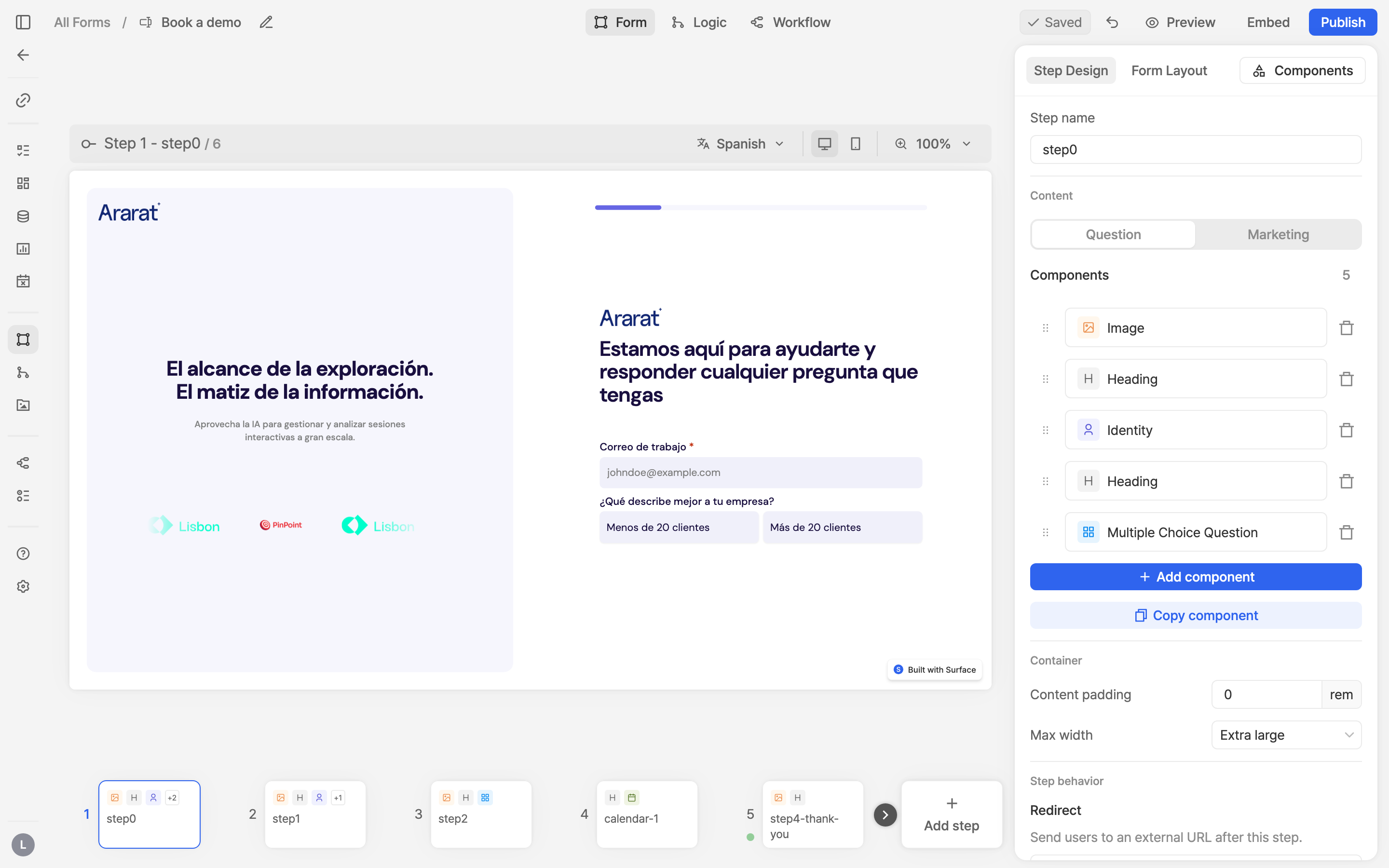
Pick a language from the menu to preview the whole form in it, step by step.
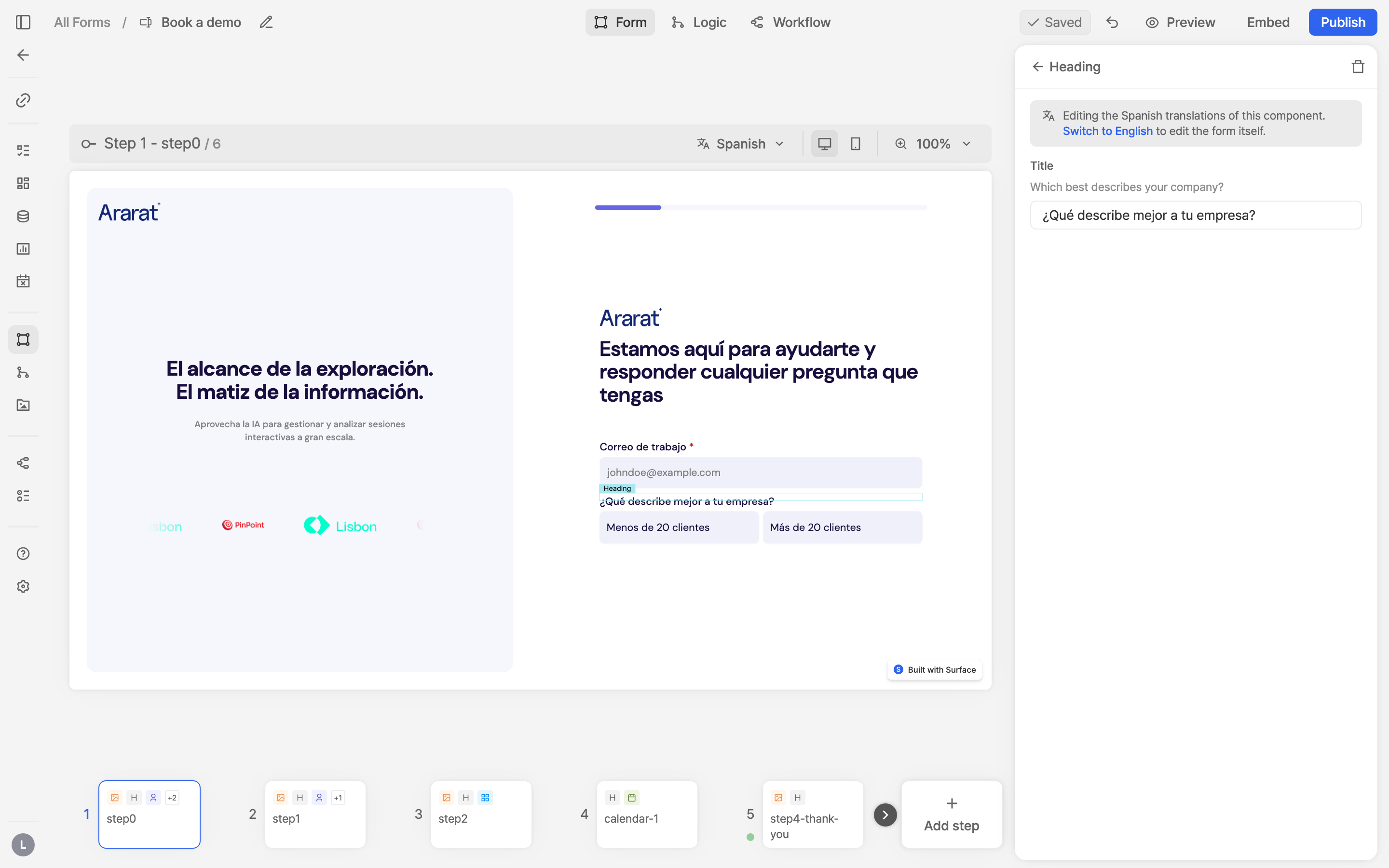
While a translated language is previewed, selecting a component shows that component's texts in the language, each with the original above it. Edit any of them; your wording stays until the original text changes. Switch to English (or your form language) to edit the form itself.
Step 4: review every text
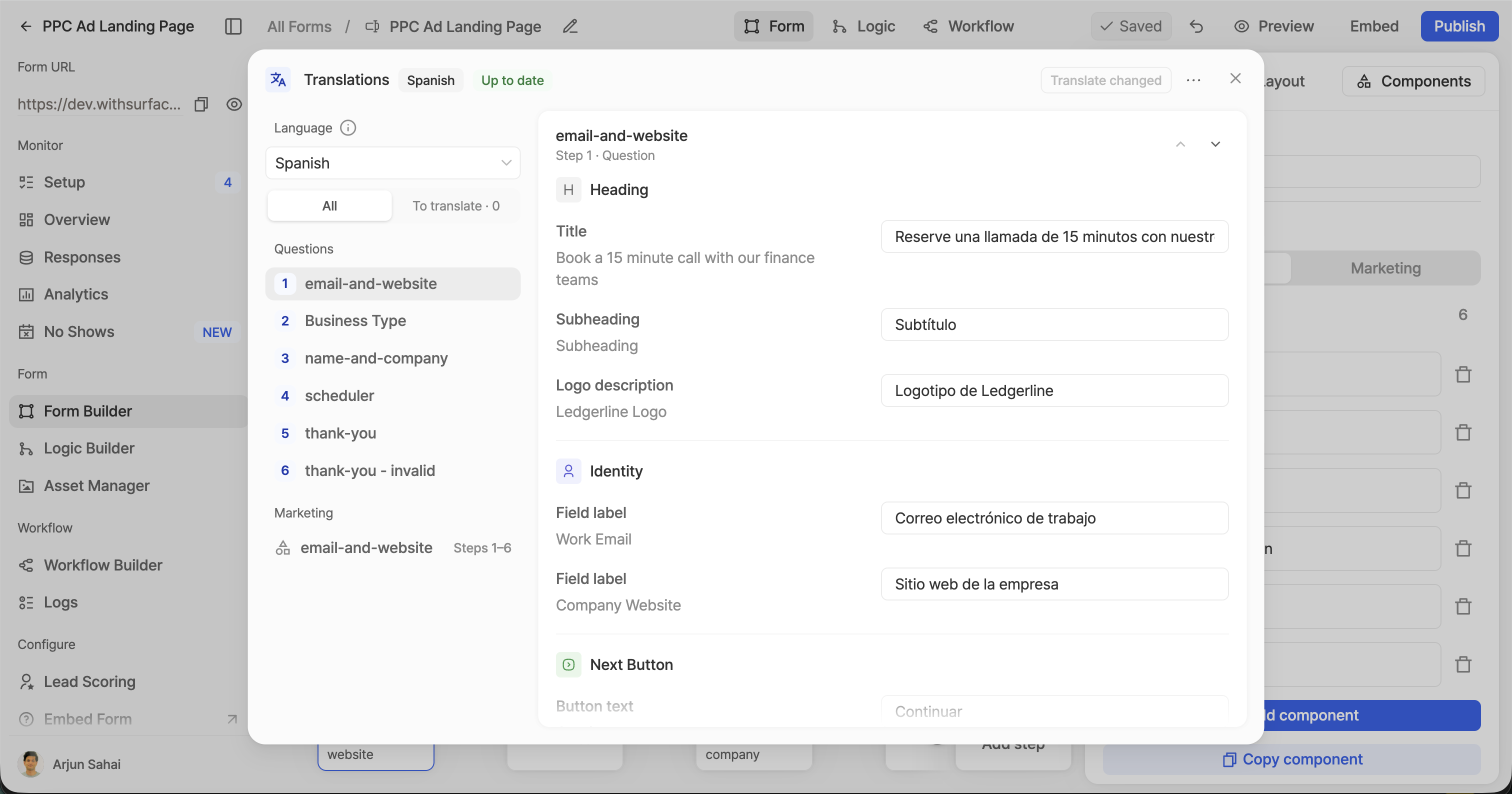
Review translations… in the language menu opens every text of the form, grouped by step and component. From here you can:
- filter to Needs translation to see only texts that changed or were never translated;
- Translate changed to translate those and keep everything else, including your edits;
- Retranslate all or Remove language from the ⋯ menu.
Step 5: publish
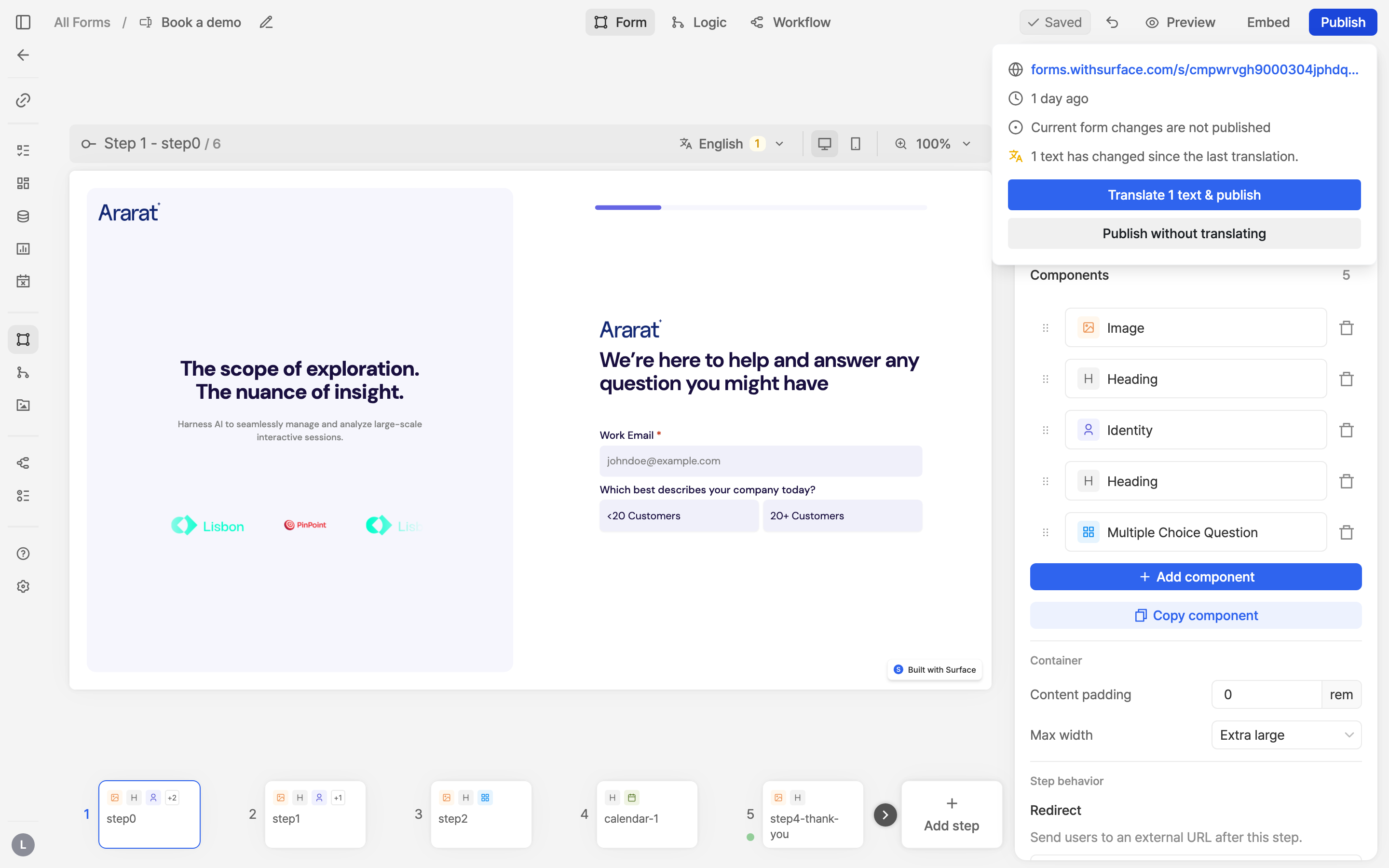
When you change a text after it was translated, the editor marks it: the language menu shows how many texts need translating, and the Publish menu offers Translate N texts & publish next to Publish without translating. A text published without a translation shows in the form language.
How a visitor's language is picked
The first of these that names a language the form is translated into wins:
- The Surface tag:
data-langon the tag, thelanguageoption of an embed, or aSurfaceSetLanguage()call (see below). - The URL:
?surface-form-language=eson the form's own link or on the page embedding it. - The browser language, when Detect the visitor's browser language is on.
- The default language from Form Settings.
Anything else, or a language the form is not translated into, shows the form language.
Responses, workflows and integrations always see the form language: option values and question labels do not change with the visitor's language.
Use it on your site
A link in one language
Add the parameter to the form link, or to the page the form is embedded on:
https://forms.withsurface.com/s/YOUR_FORM_ID?surface-form-language=es
Every form on the page
Set data-lang on the Surface tag. All embedded
forms translated into that language render in it; the others keep their own.
<script
  src="https://cdn.jsdelivr.net/gh/trysurface/scripts@latest/surface_tag.min.js"
  site-id="YOUR_SITE_ID"
  data-lang="es"
></script>
One embed in a fixed language
Pass language as the fourth argument of any embed.
It wins over the page's data-lang and over later SurfaceSetLanguage() calls.
<script>
  (function () {
    const surface_src = "REPLACE ME WITH FORM URL"
    const surface_embed_type = "popup"
    const target_element_class = "surface-form-button"
    const c = new SurfaceEmbed(surface_src, surface_embed_type, target_element_class, {
      language: "es",
    })
  })();
</script>
Switch languages from your own language picker
// Every embedded form without a language of its own switches in place; answers are kept.
window.SurfaceSetLanguage("fr");

// Back to the URL, browser and default rules.
window.SurfaceSetLanguage(null);