
Cloudflare Turnstile
Step 1: navigate to Cloudflare Turnstile
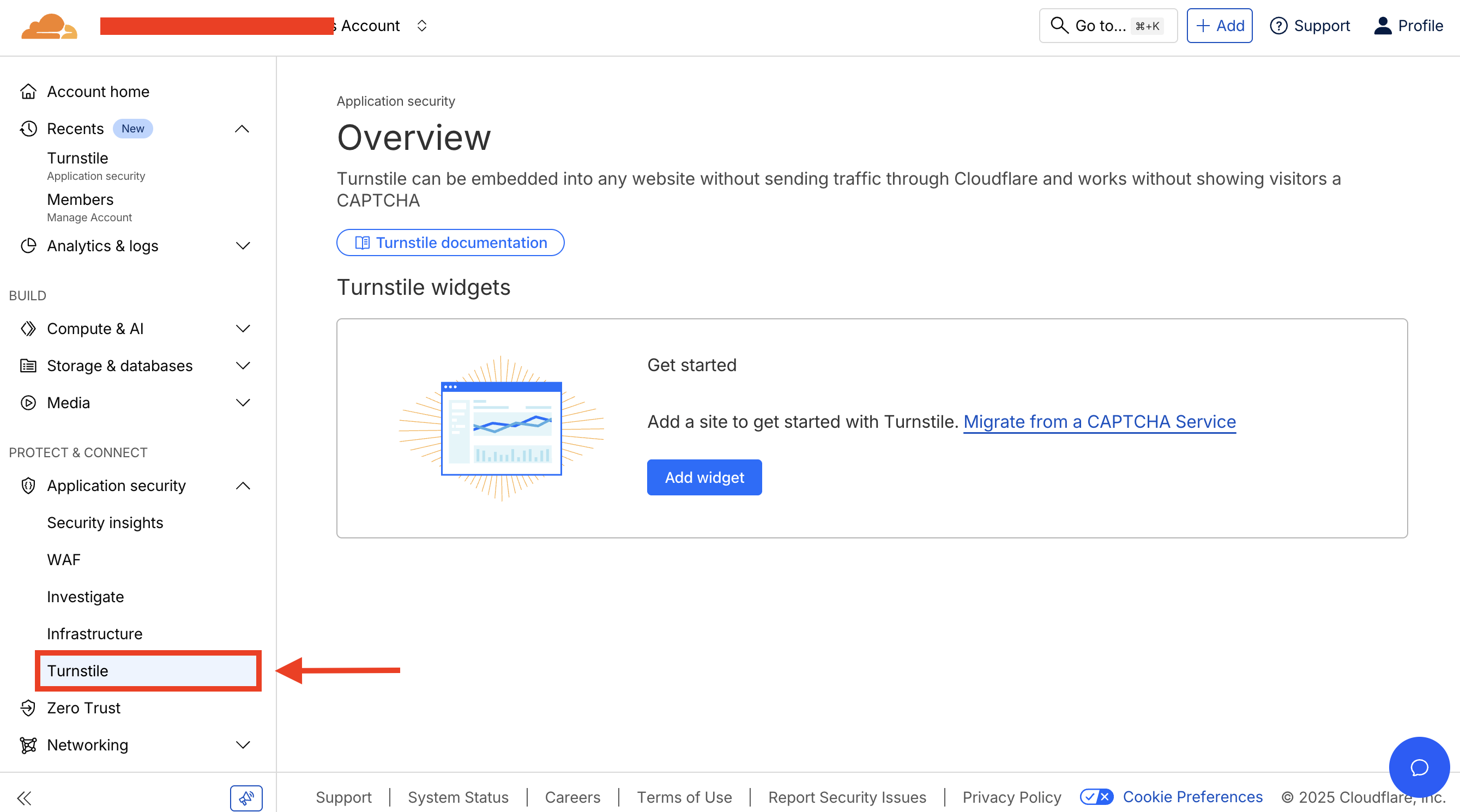
- Login to Cloudflare Dashboard
- Navigate to Protect & Connect > Application security > Turnstile
Step 2: add new widget
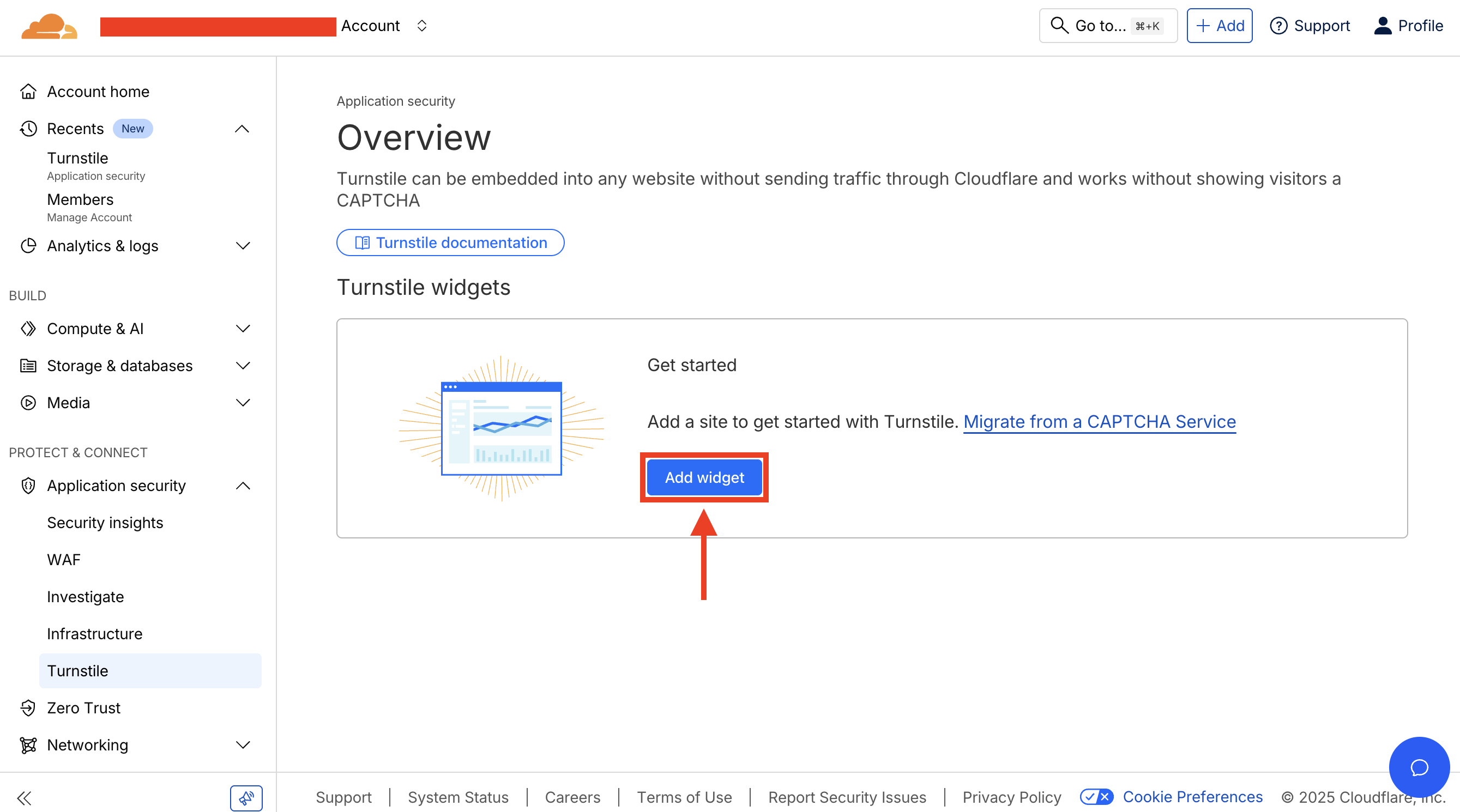
Click on Add new widget to create a new Turnstile widget.
Step 3: configure widget settings
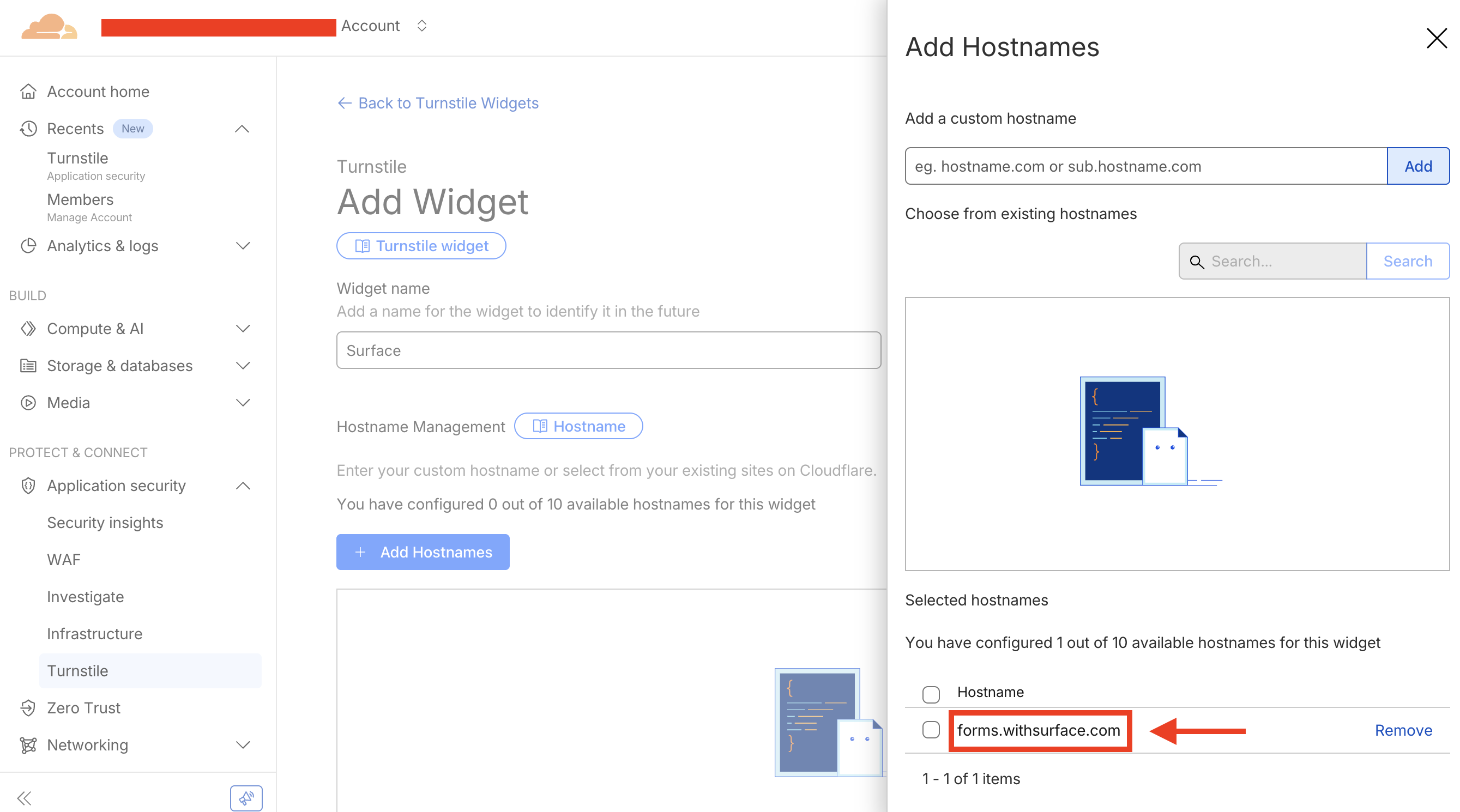
- Set up the widget configurations
- In the Hostnames field, add
forms.withsurface.comor the verified custom domain used by your form - Click
Addbutton to add the host
Step 4: create widget and copy keys
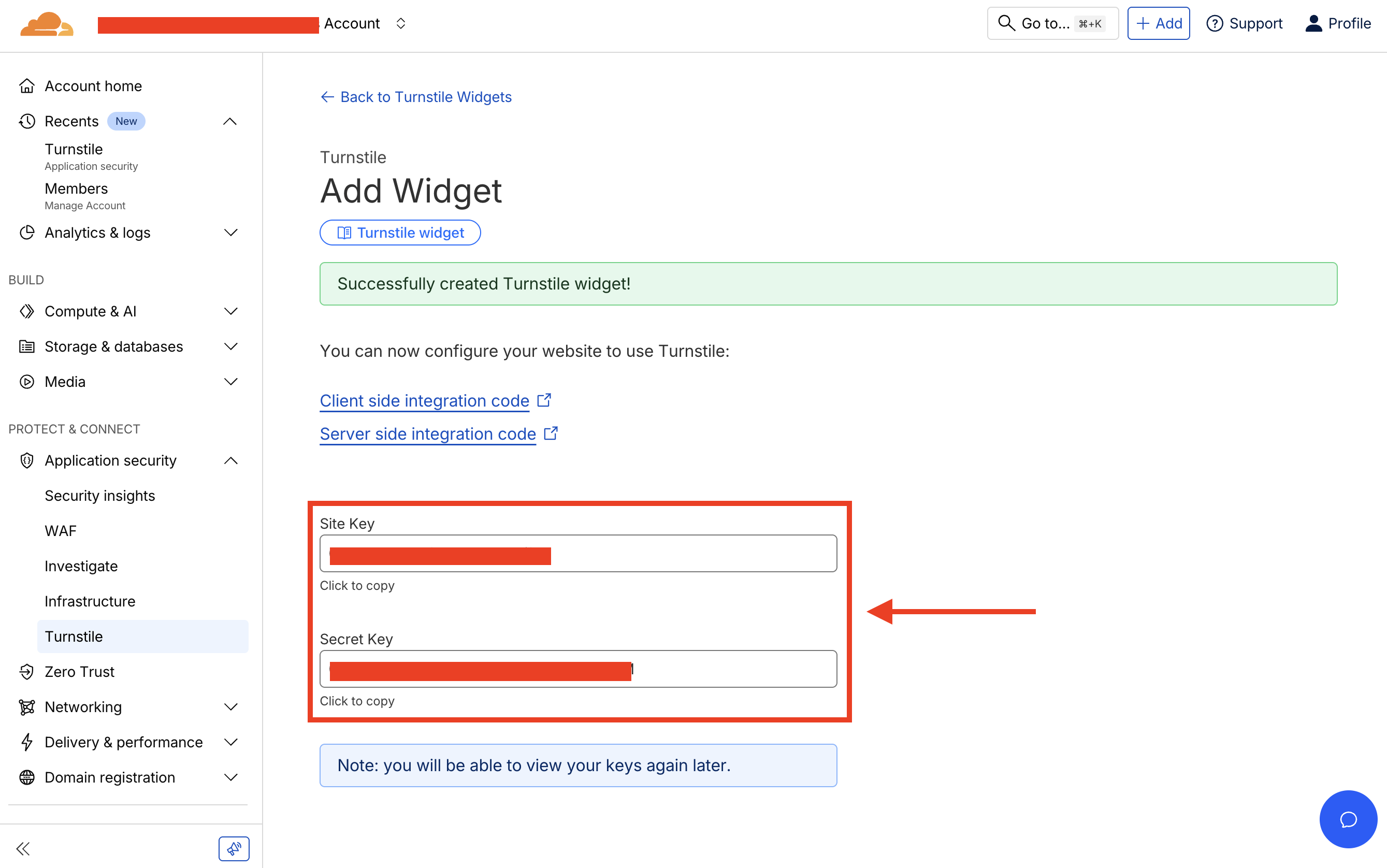
- Click Create to create the widget
- After creating the widget, copy the Site Key and Secret Key
Step 5: configure Turnstile in Surface form settings
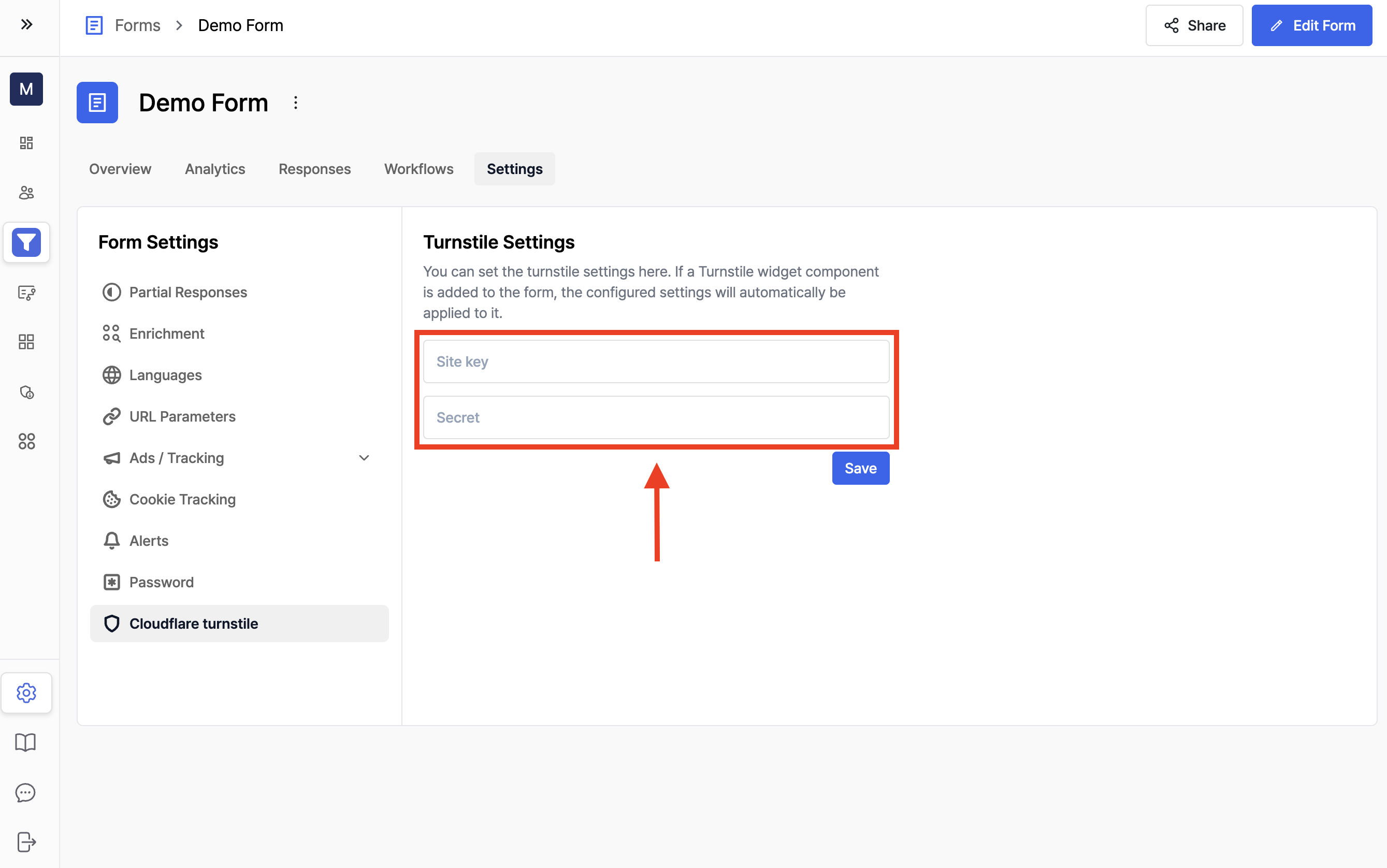
- Navigate to your Surface Form settings page
- Go to Cloudflare Turnstile section
- Paste the Site Key and Secret Key that you copied in Step 4
- Click Save to save the settings
Step 6: add Turnstile widget to your form
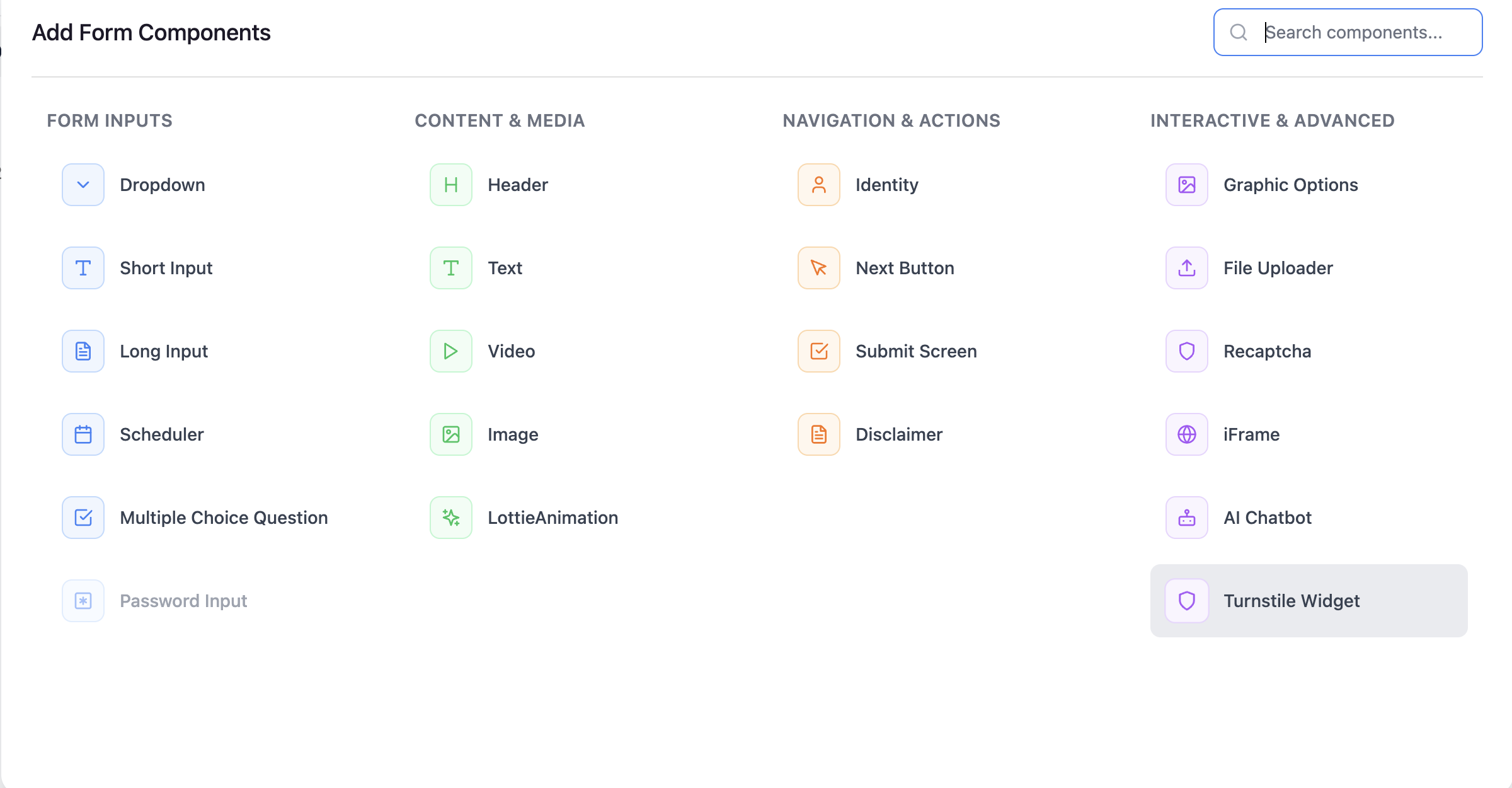
- In the Form Builder, navigate to the step where you want to add the Turnstile widget
- Click + Add component or Copy existing component
- Select the Turnstile widget component from the component list
- The widget now appears in your form and is checked when someone submits it