
Step 4 automation
Create a HubSpot automation that fires when a contact submits the HubSpot form you use with Surface and enrolls them in your sequence, so they receive the emails you set up in Steps 2 and 3.
Create the automation
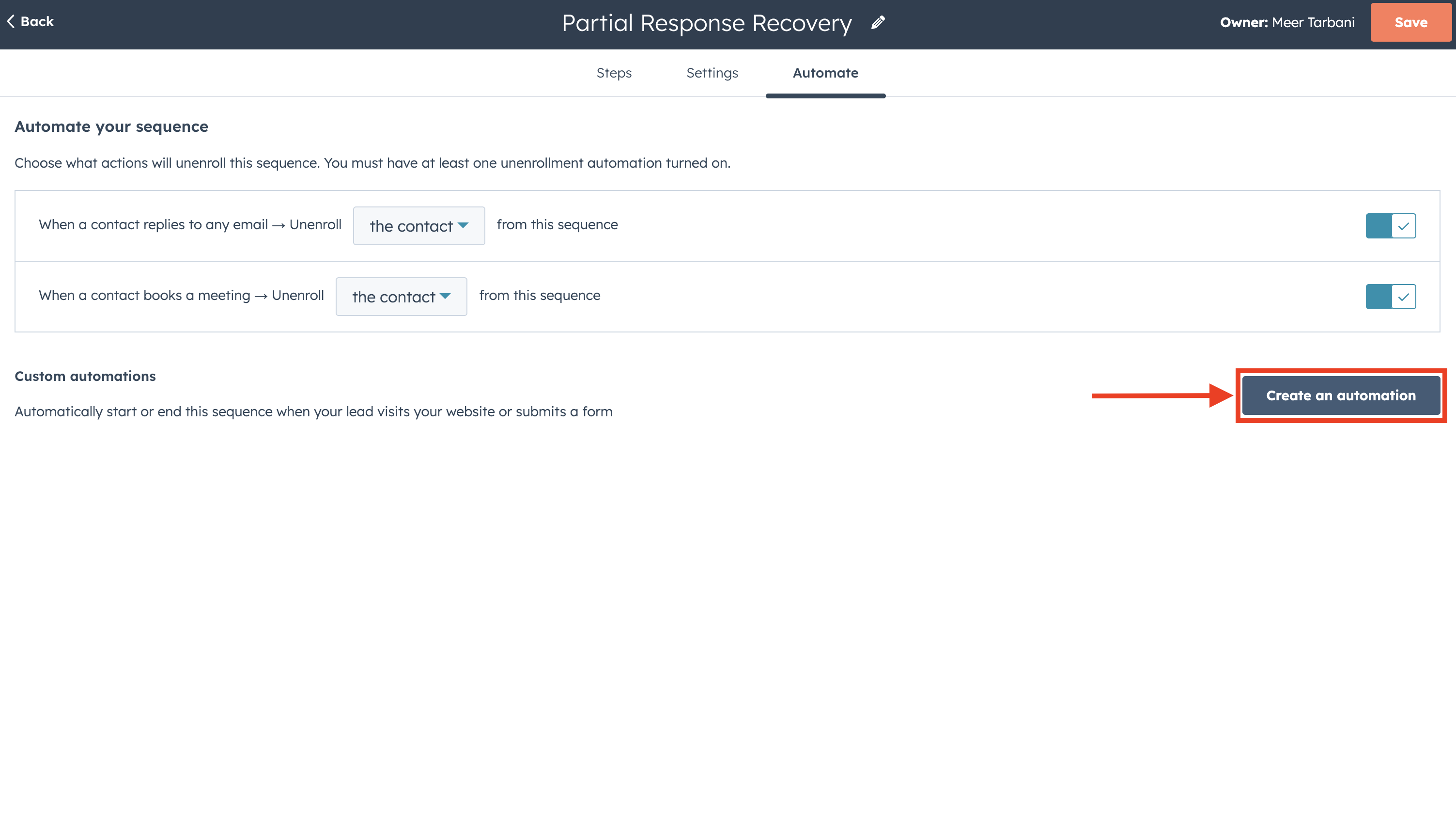
- In your sequence, open the Automate tab
- Click Create an automation
Set the trigger: form submission
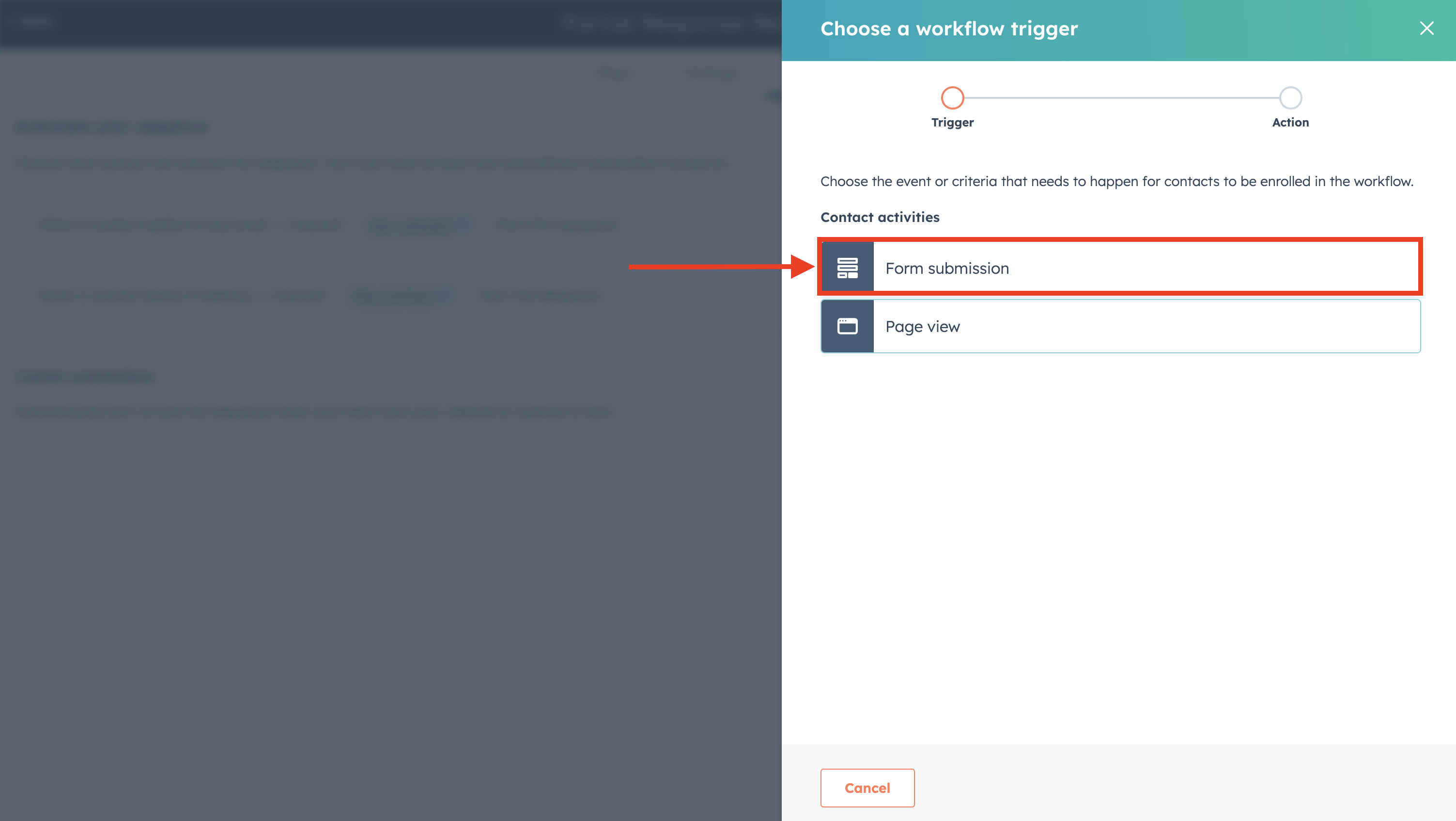
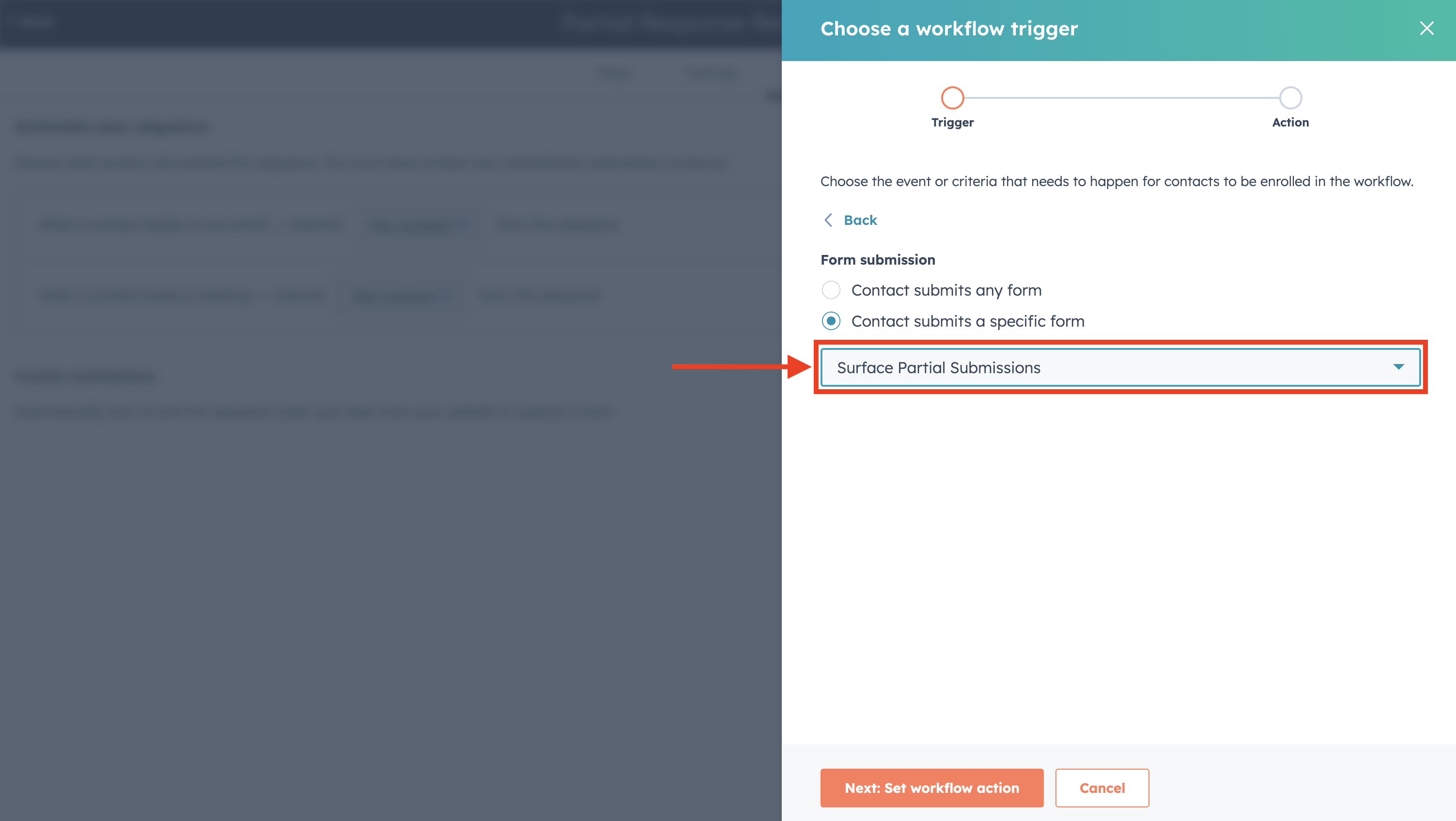
- Set the trigger to Form submission
- Choose Contact submits a specific form
- Select the HubSpot form you created in Step 1 (the same form your Surface workflow sends to via Create Form Response)
Configure the enrollment action
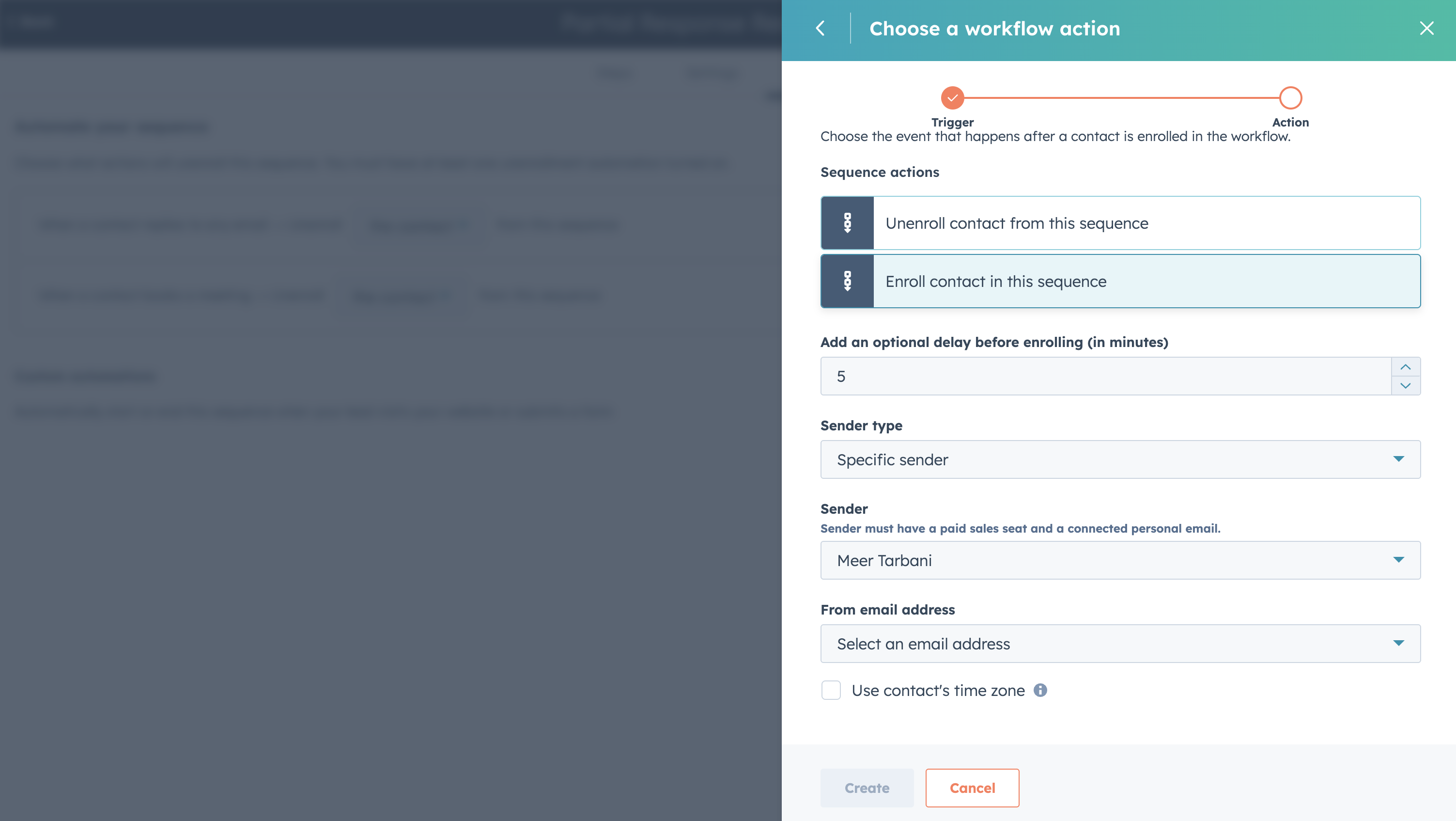
- Add an action and choose Enroll contact in this sequence (or the equivalent sequence enrollment action)
- Configure sender email and sender name so emails come from the right address and identity
- Review any other options (e.g., eligibility, max enrollments) if your HubSpot plan supports them
Create and turn on the automation
- Click Create (or Save) to create the automation
- Turn the automation on so it runs when the form is submitted
Contacts who submit that form are then enrolled, whether they came from a Surface Dropped Off or Form Submission workflow.