
Step 2 hubspot sequence
Create a HubSpot sequence (or use an existing one) and add the first automated email, with personalization tokens from your contact fields and your HubSpot meeting link.
Create a new sequence
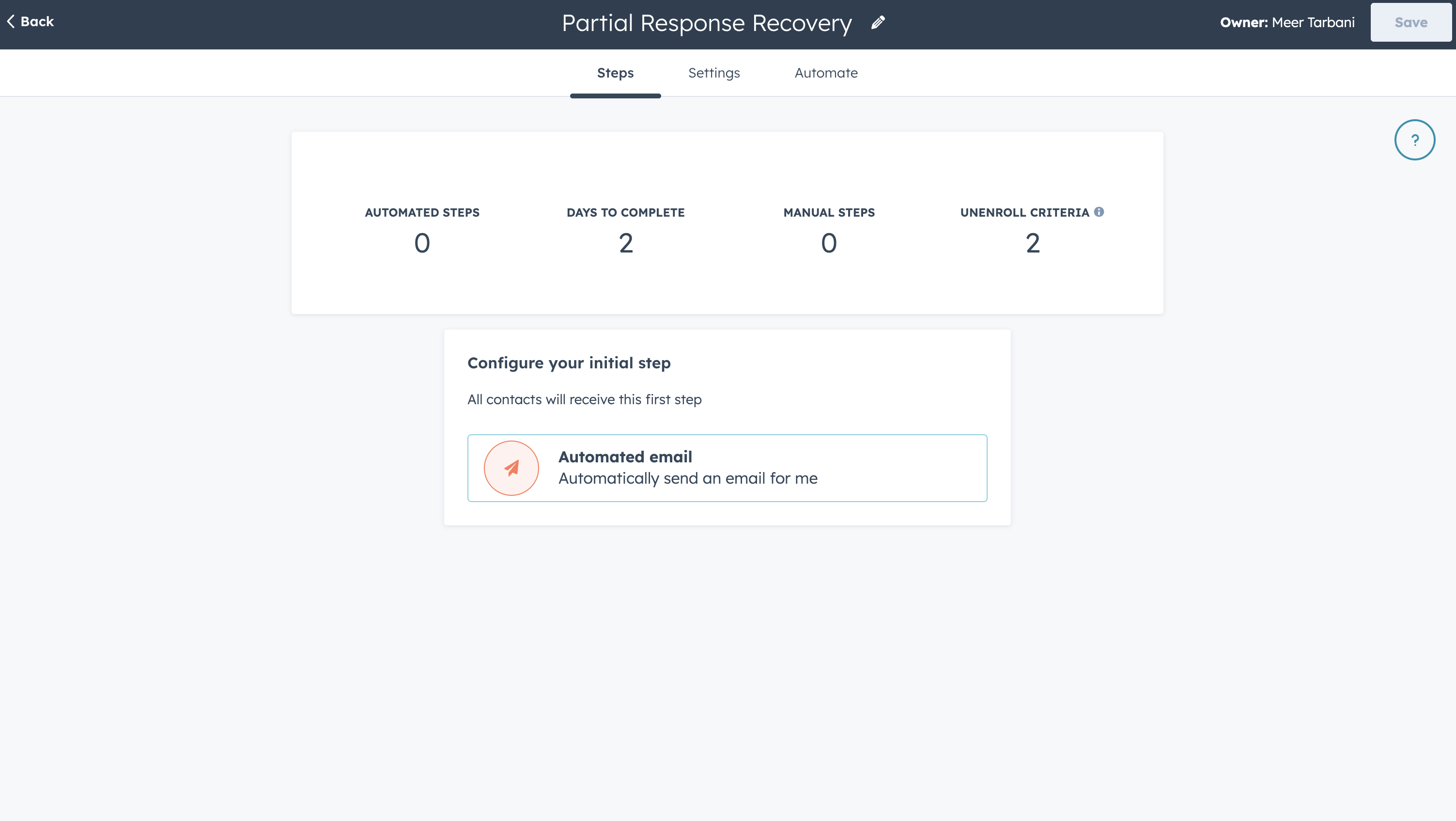
- In HubSpot, go to Sales → Sequences → Create sequence
- Name the sequence (e.g., "Surface form follow-up")
- Under Steps, click Automated emails to add your first email
Add or choose an Email template
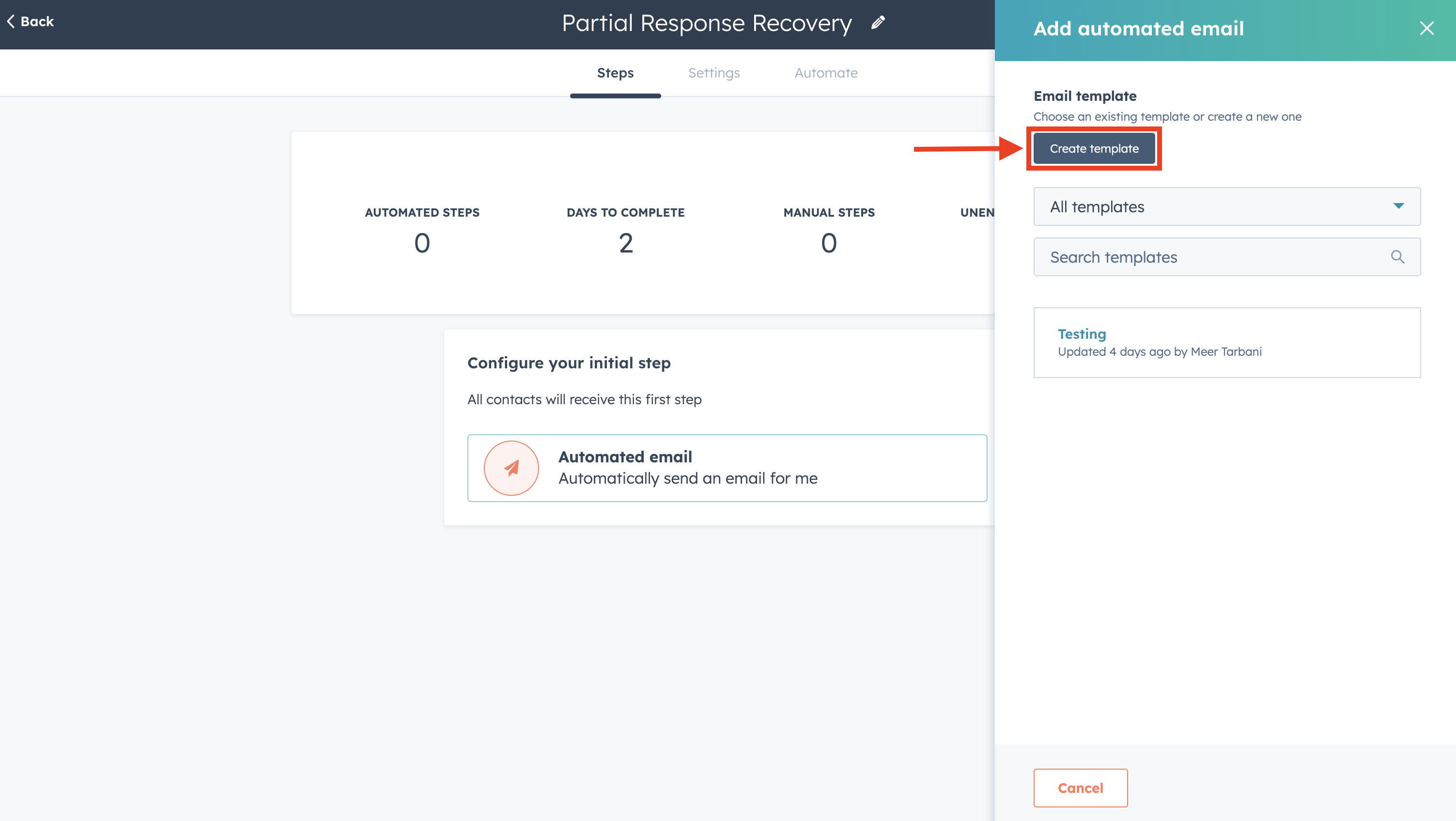
- Use an existing email template from the list, or
- Click Create new template to build one from scratch
Add form/contact fields to the Email (personalization tokens)
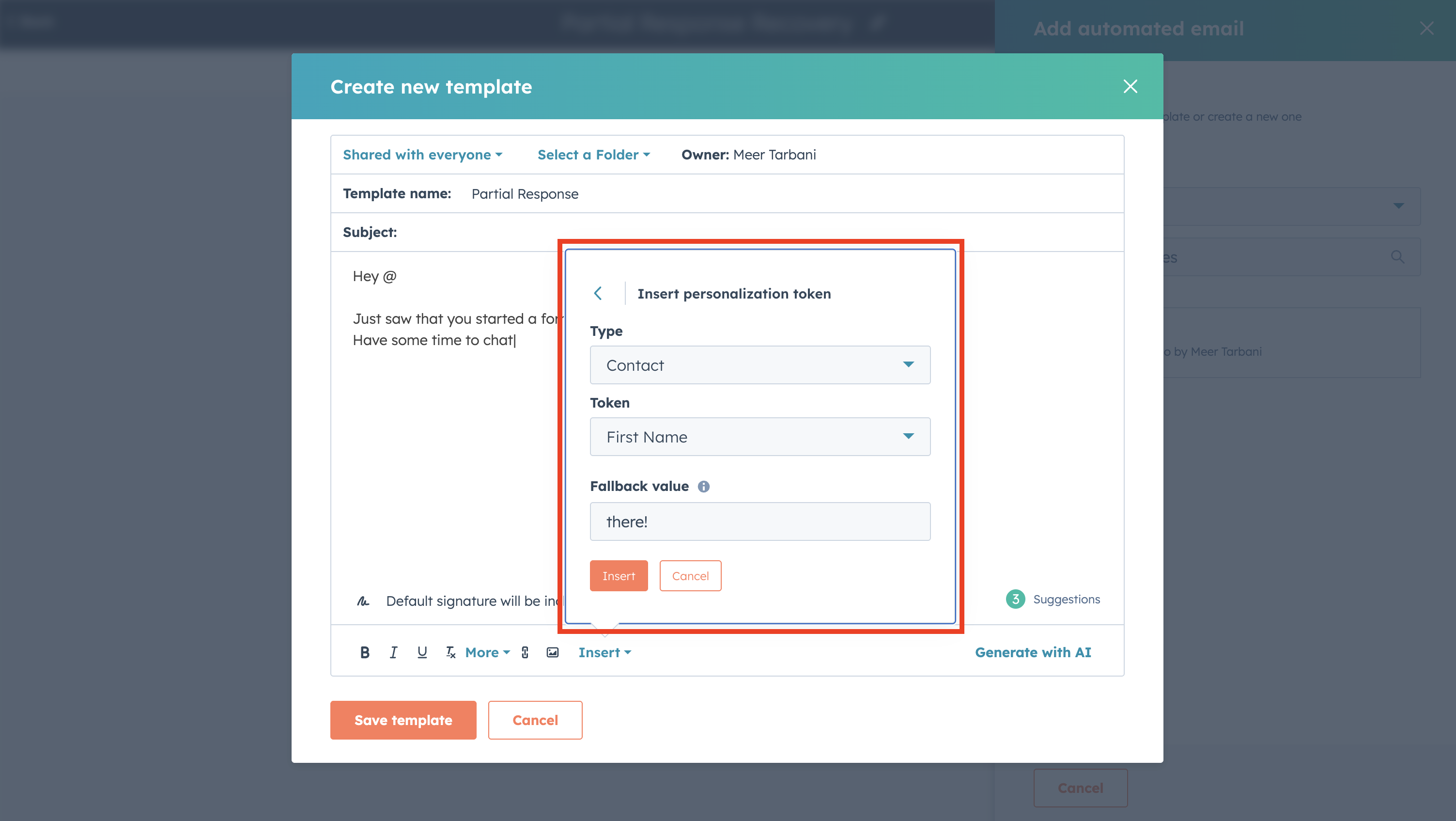
To personalize the email with the contact's name or other data from the form:
- In the template editor, place the cursor where you want the dynamic value (e.g.,
Hi {{ firstname }},in HubSpot) - Click Insert → Personalization tokens
- Choose Contact and then select the property you want (e.g., First name, Last name, Company)
- In the token dropdown, configure a fallback value for contacts who don't have that field (e.g., "there" if first name is empty)
- Click Insert
Repeat for any other contact properties you want in the email body or subject line.
Add your HubSpot meeting link
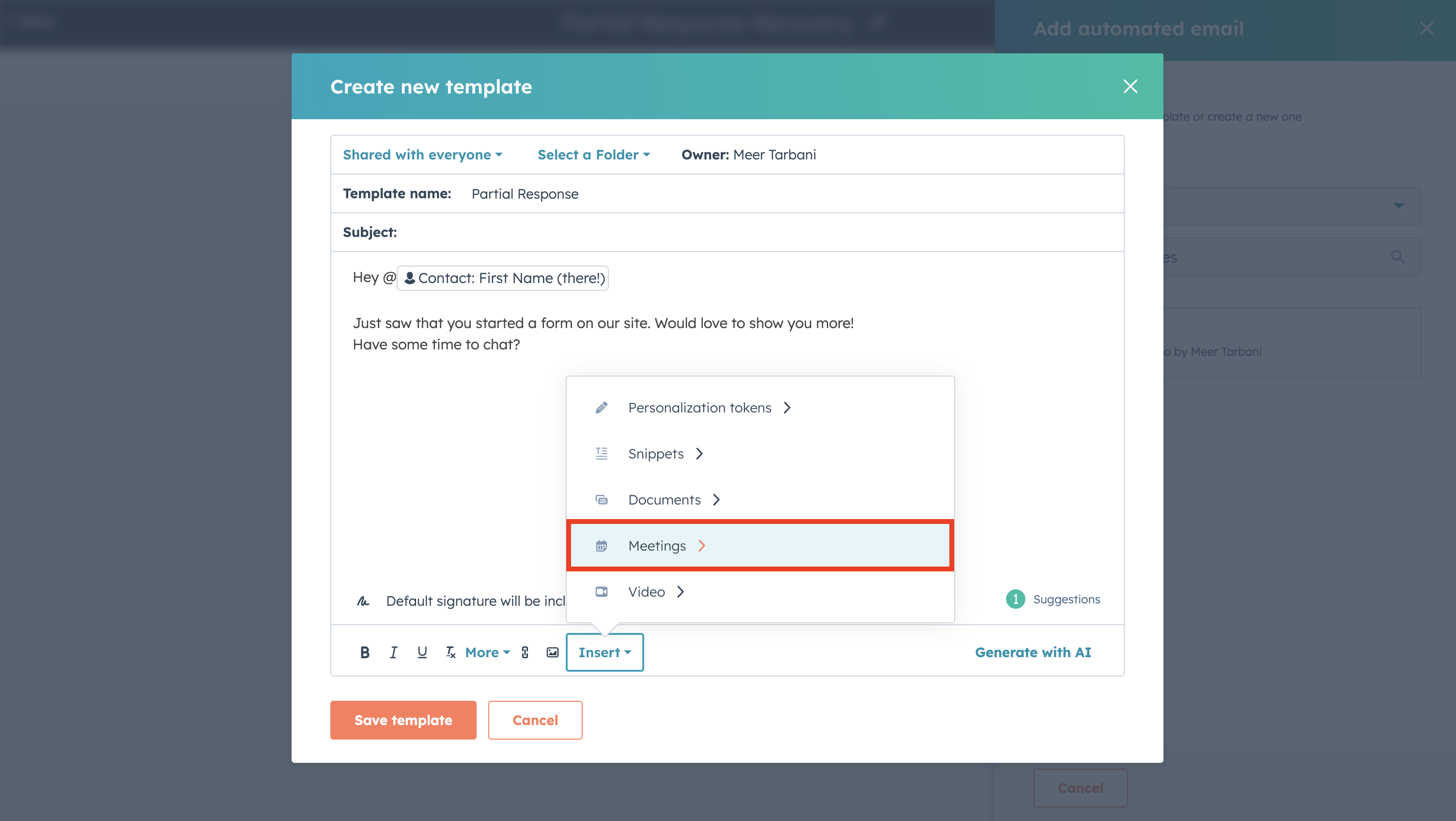
To add a meeting link so leads can book a call:
- In the template editor, click Insert → Meetings
- Select your HubSpot meeting link (the one you use for scheduling)
- Click Insert
Save the template
- Finish editing the subject line and body (including any other copy)
- Click Save (or Save template) to store the template